Instagram posting and analytics, Kling Motion Control
You can now post Instagram Reels straight from Canvas
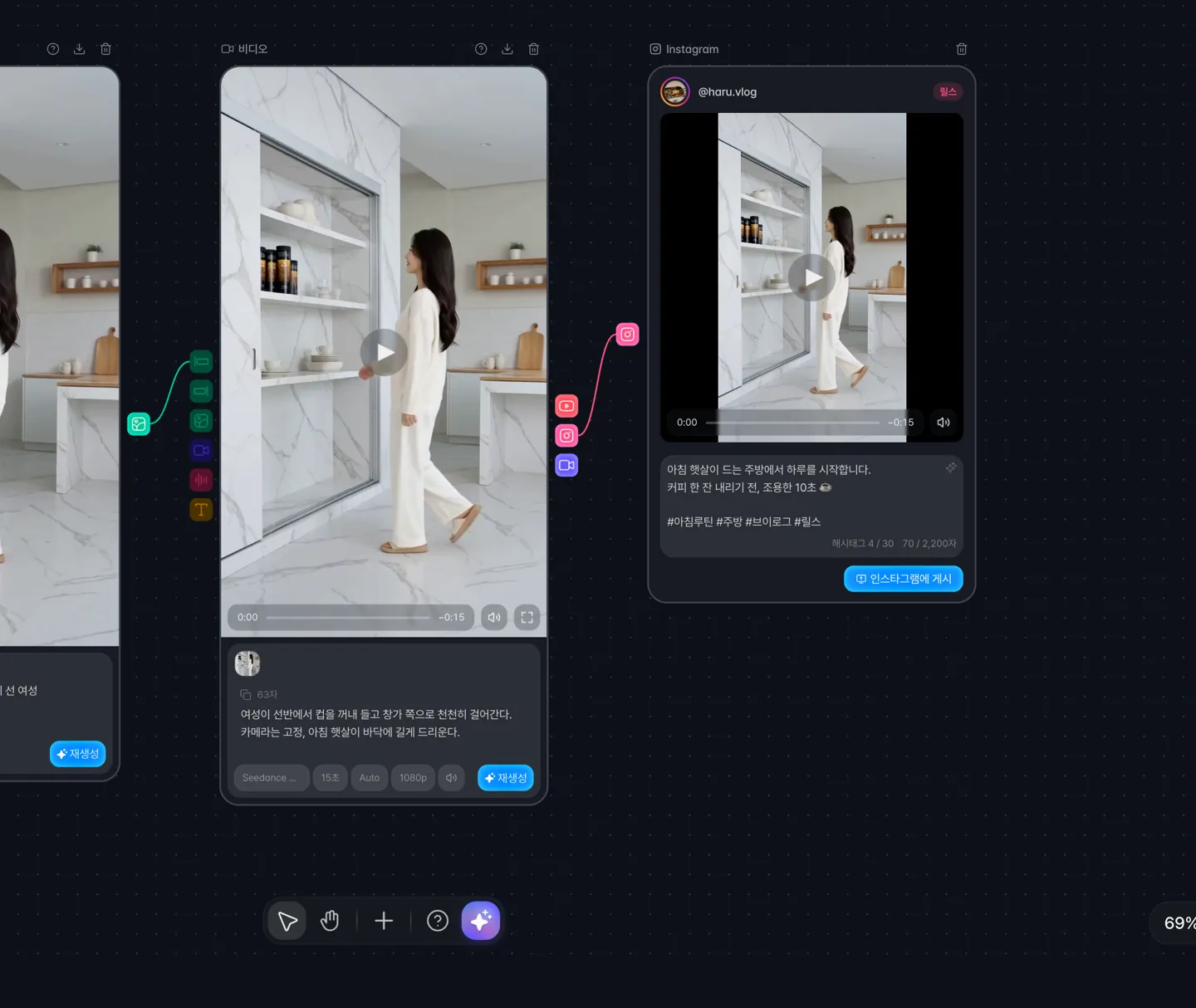 Click the Instagram button on the right side of a finished video node or Composition node to add an Instagram node, then add a caption and post it as a Reel. You can also have AI write the caption.
The Instagram node shows the connected account and a preview of the video, and displays your caption length (up to 2,200 characters) and hashtag count (up to 30) against their limits. After posting, you can jump straight to it with View on Instagram.
Connect an Instagram professional account (Business or Creator) to use this on the Lite plan or above.
Instagram analytics is now available
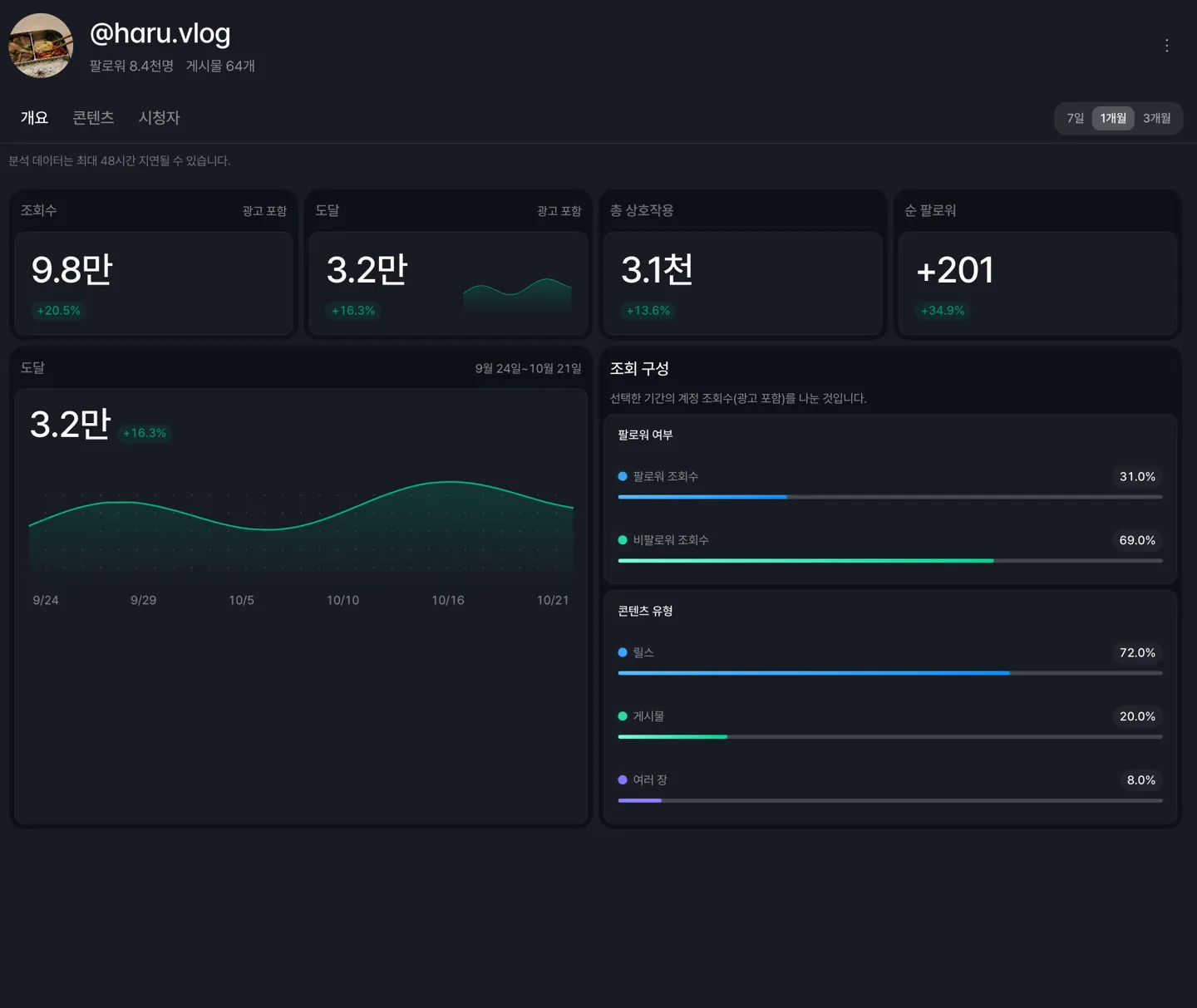 In Instagram analytics in the sidebar, you can track views, reach, interactions, and follower changes over time. You can also see your followers' age, gender, and location, along with views, reach, and watch time for each post.
Account views include ads, while per-post numbers do not. Available on the Plus plan or above.
You can now connect your account right from a posting node
If your account is not connected, the post button on YouTube and Instagram nodes is disabled, and you can connect without leaving the canvas using the Connect button inside the node. If connecting fails, you are told why.
AI models
Kling Motion Control is now available
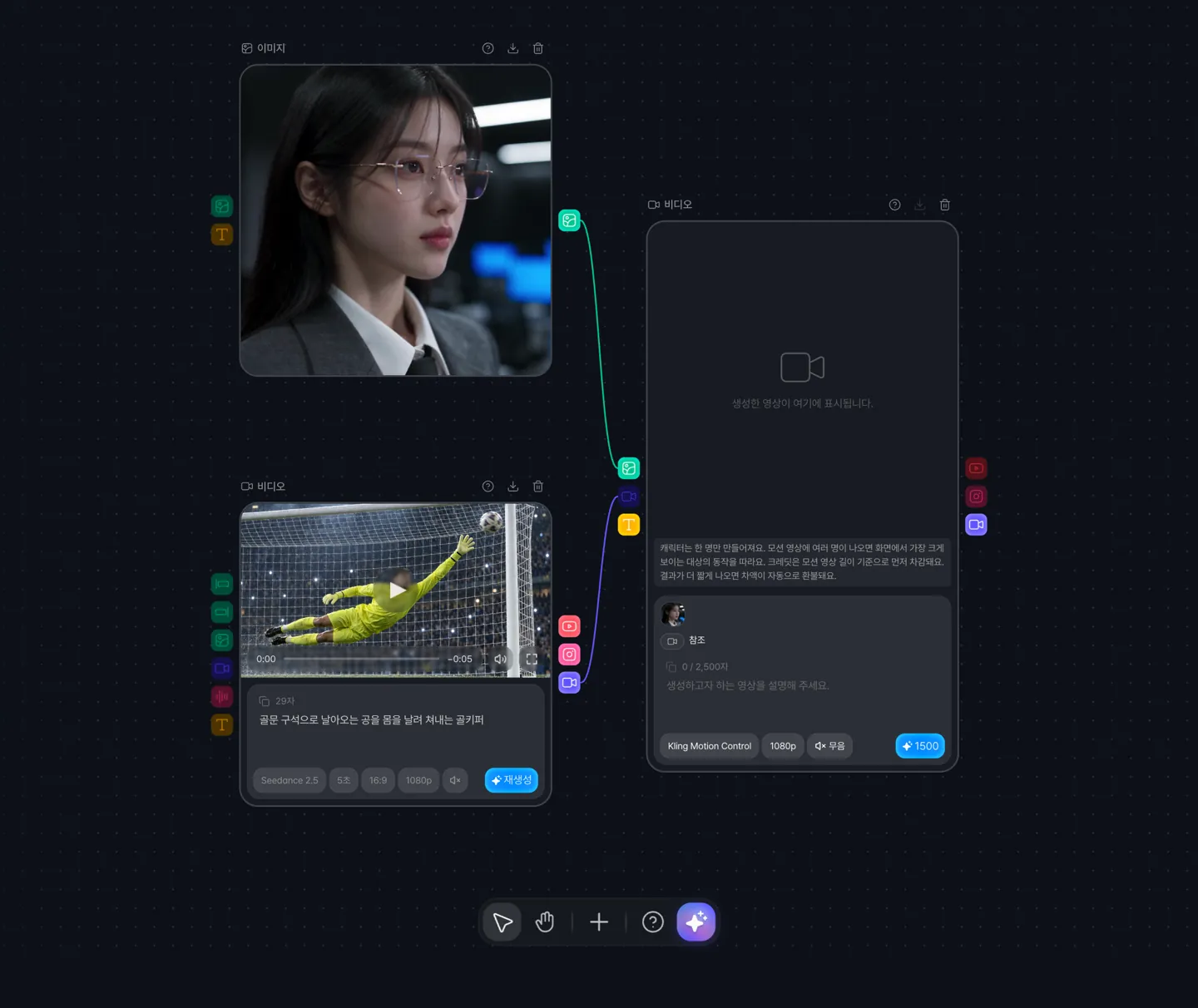 Connect one character image and one motion video (3 to 30 seconds), and the person or character in the image will follow the movement in the motion video. 720p and 1080p are supported.
Credits are deducted up front based on the motion video's length in whole seconds (rounded down), at 220 per second for 720p and 300 per second for 1080p. If the result is shorter than the motion video, the difference is refunded.
You can now add reference audio to video generation
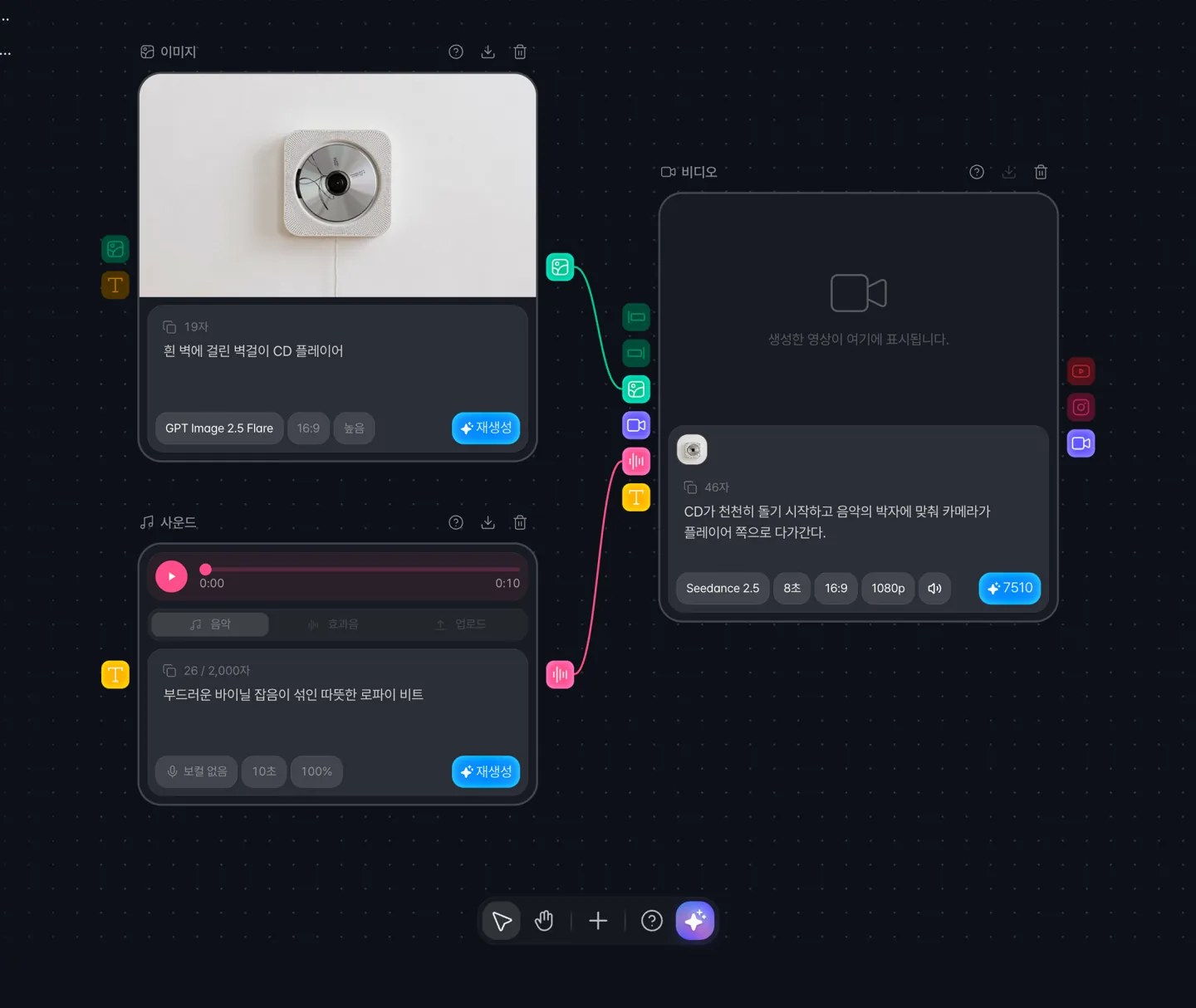 Use the Reference audio button on a video node to connect audio from a TTS or sound node, or an MP3 or WAV file. The model uses the voice, melody, or dialogue as a reference and generates the video from scratch.
Supported on the Seedance 2.0 series, Seedance 2.5, and MiniMax H3.
You can now set start and end frames in Kling Omni
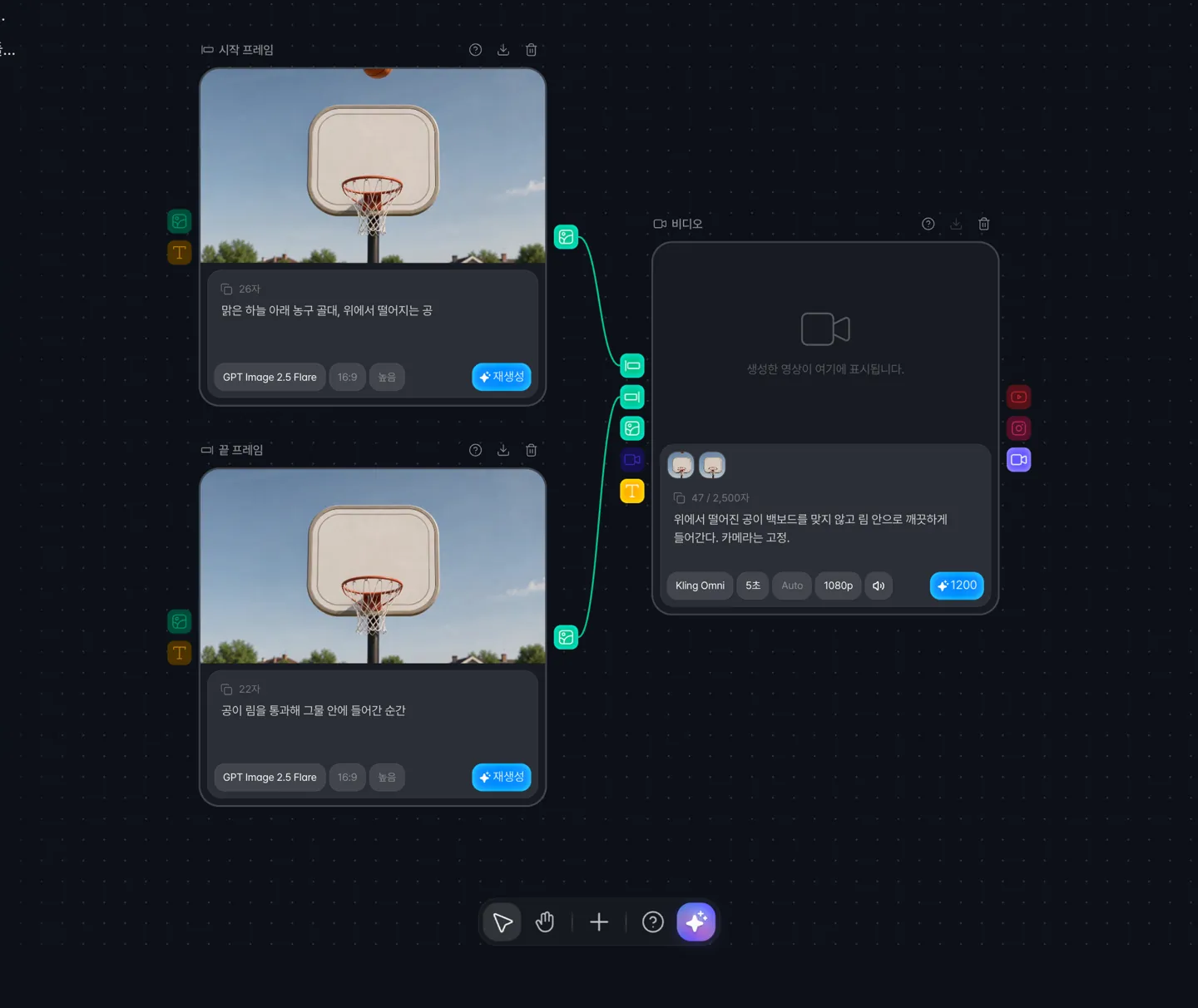 Use a start frame and an end frame to decide how your video begins and ends. You can add an end frame once a start frame is connected, and connect up to 5 reference images alongside them.
Error messages and Kling 2.6 sound generation have been fixed
We fixed an issue where Kling 2.6 failed to generate at 720p with sound turned on.
When a reference image is too small or is blocked as a real person, the message now explains the exact cause. Motion videos whose length cannot be read are flagged with a reason when you upload them.
Canvas
Adding nodes and sections now lives in the + menu
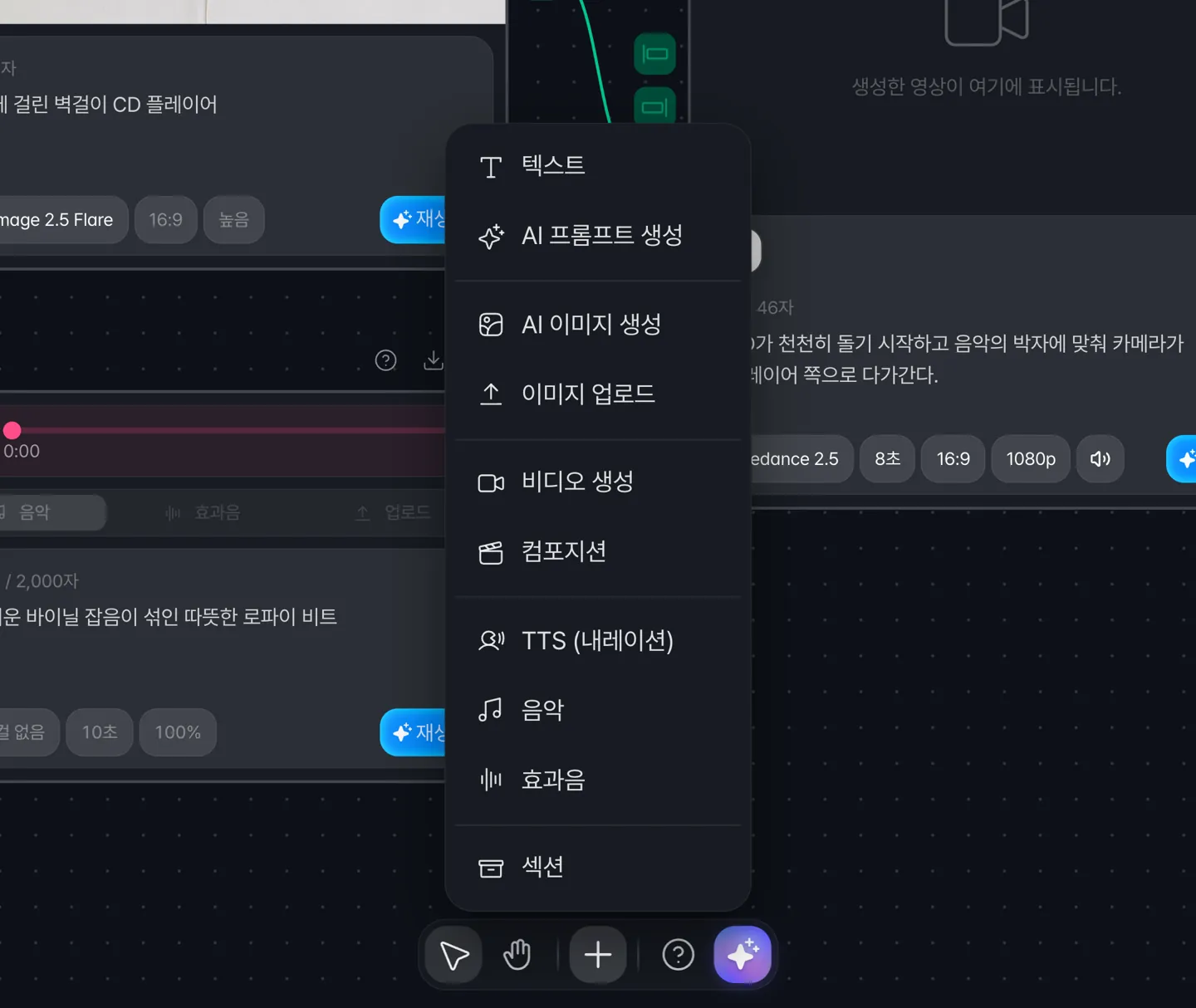 The bottom toolbar is now a single bar. Add text, image, video, Composition, and audio nodes, as well as sections, from the + menu. Nodes that are generating also show up in the layers panel.
Klipse Assistant gives better answers
The assistant now follows your request as stated, asks when a request is unclear, and tells you about limits when it cannot do something. It also answers questions in English and Japanese.
A ring at the top of the assistant panel shows how much of this week's allowance is left.
Composition
You can now use caption templates in Composition
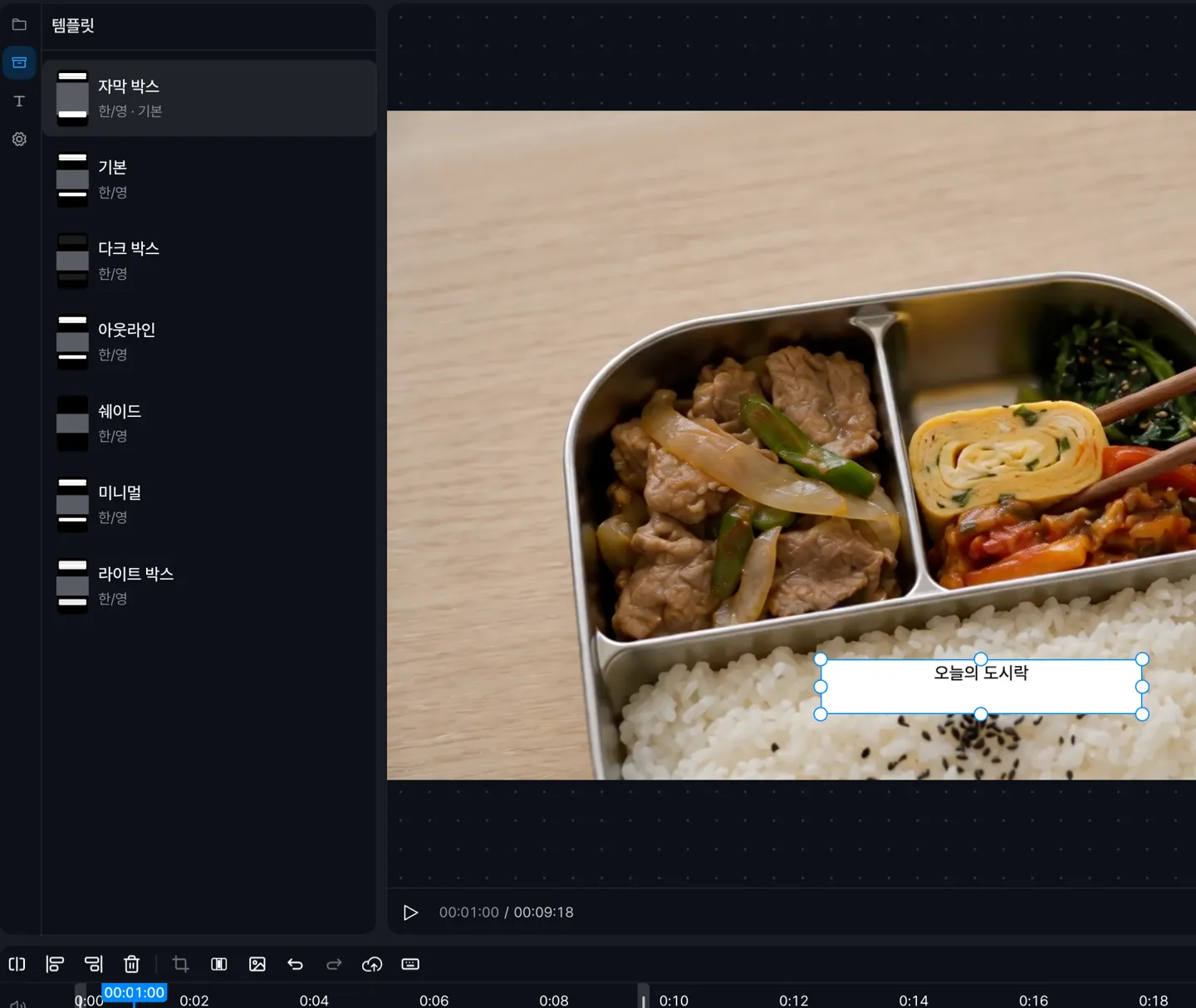 Select a caption and click a template to apply its style in one step.
Import from project brings in videos, images, and audio from your Canvas projects, and you can set any frame as the thumbnail for a YouTube post.
Website
The newsroom is now open
Find Klipse product updates and news in the Newsroom. You can reach it from the Resources menu on the landing page.