

New Home with Harry, and Comics and Slides launch
v1.16
Home
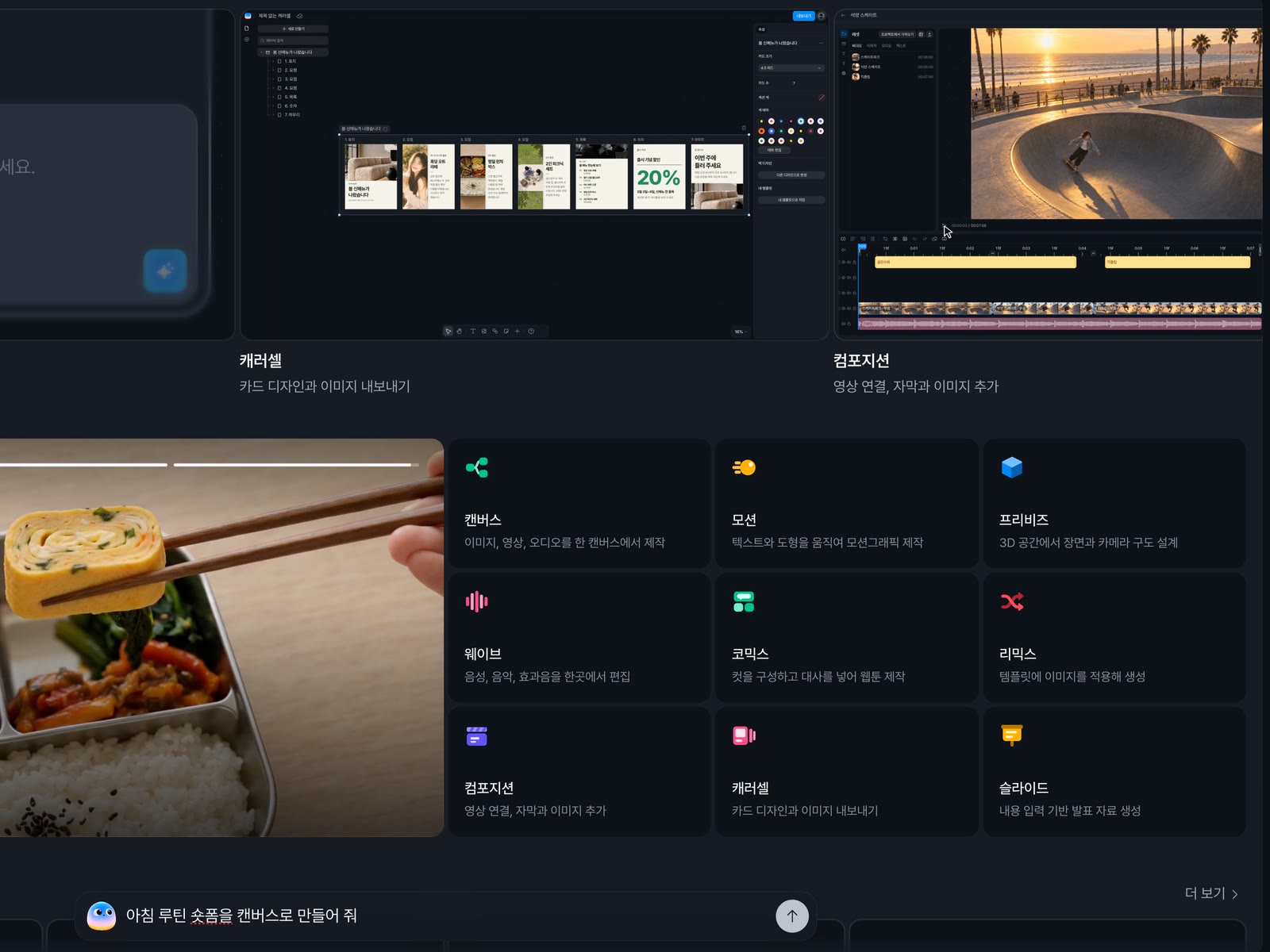
Ask Harry what you want to do from the new Home
Type what you want to do in the input at the bottom of Home, and Harry creates a new canvas, opens a project, or takes you to the right page.
Requests to make something open a new canvas, where Harry on the canvas picks up the work.
A new top menu and service pages
The top menu now lets you find services and models by what you want to make, such as images, video, or audio.
The first time you open a service, an intro video for that service plays. The default theme is now dark.
Comics
Introducing Comics for making webtoons
Decide the story and characters by talking with Harry, then make your webtoon through the character sheet, storyboard, panel drawing, and speech balloon editing steps.
A character sheet shows three expressions and three full-body poses on one image. You can write the storyboard with AI or by hand.
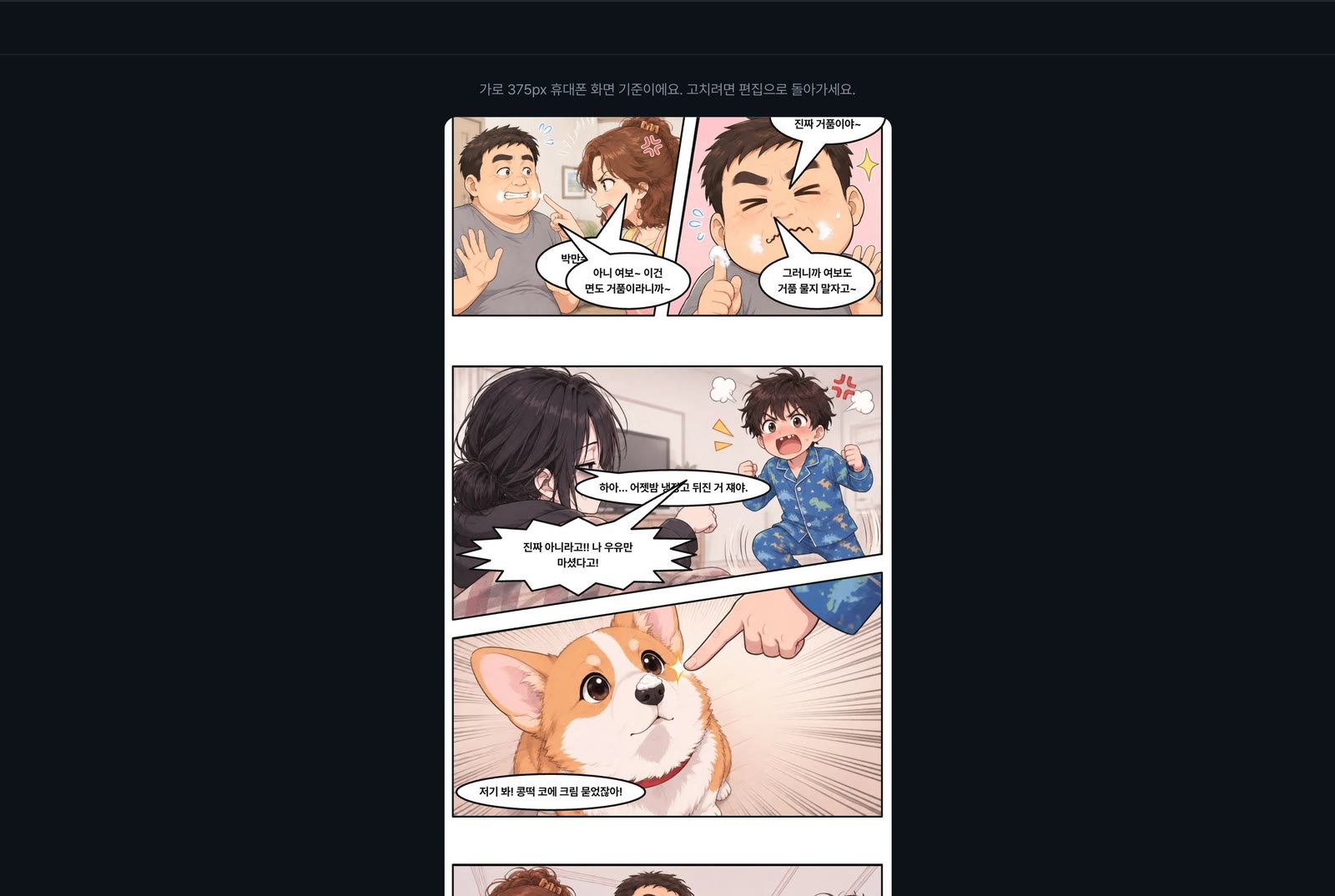
Draw panels in groups and export the way you need
Draw only the first group to try it out, then continue with the rest, or pause with Stop remaining groups.
Speech balloons come with 13 comic fonts. Export the result as one long image or as images per group.
Results you spent credits on can be retrieved again even after you close the window or refresh.
Slides
Slides editor is now in beta
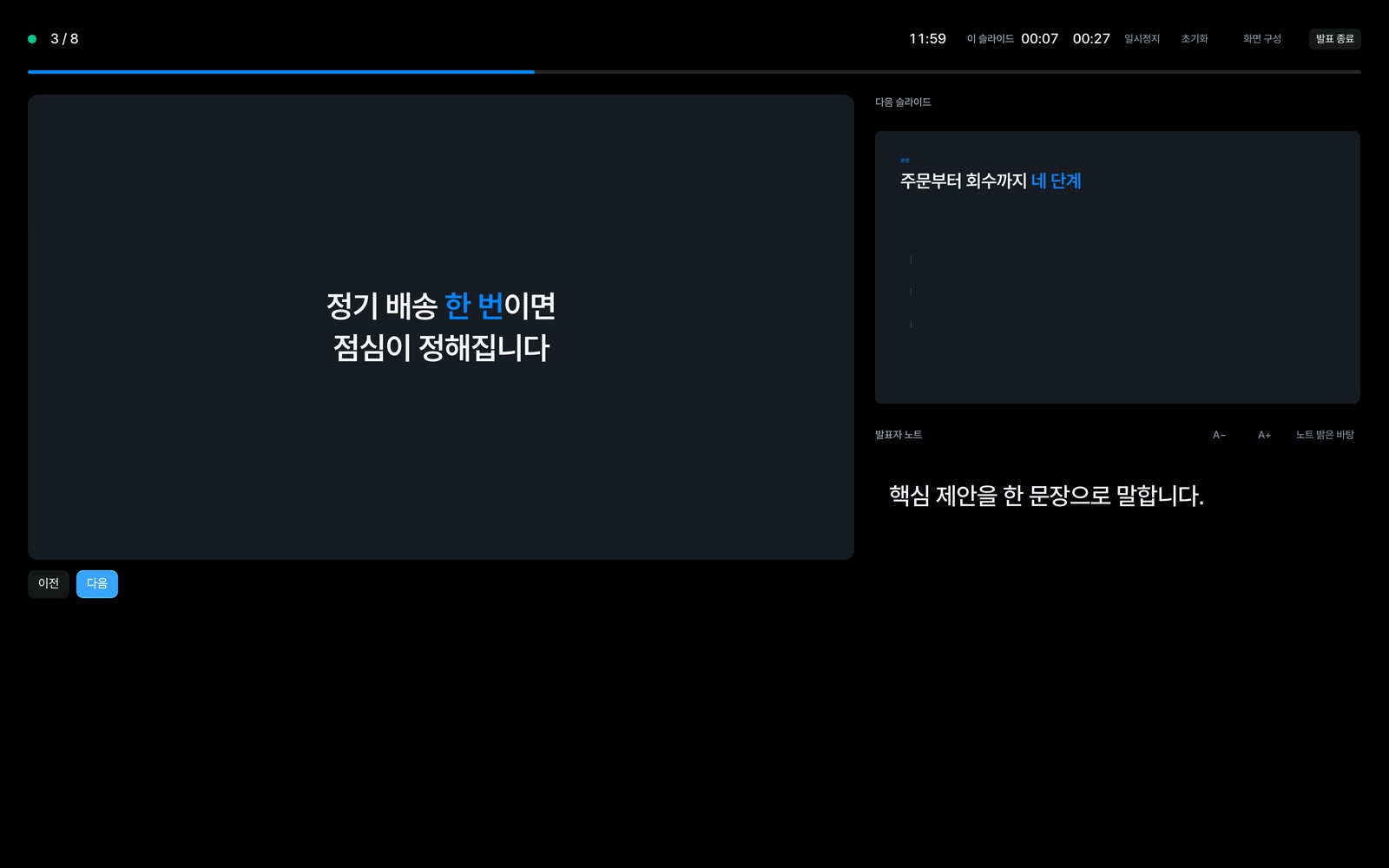
Create and edit decks, then present them with a presenter view and laser pointer.
Share a link that opens without signing in, and export to PDF, PNG, or PowerPoint.
You can ask Harry to create a deck or add AI images.
Motion
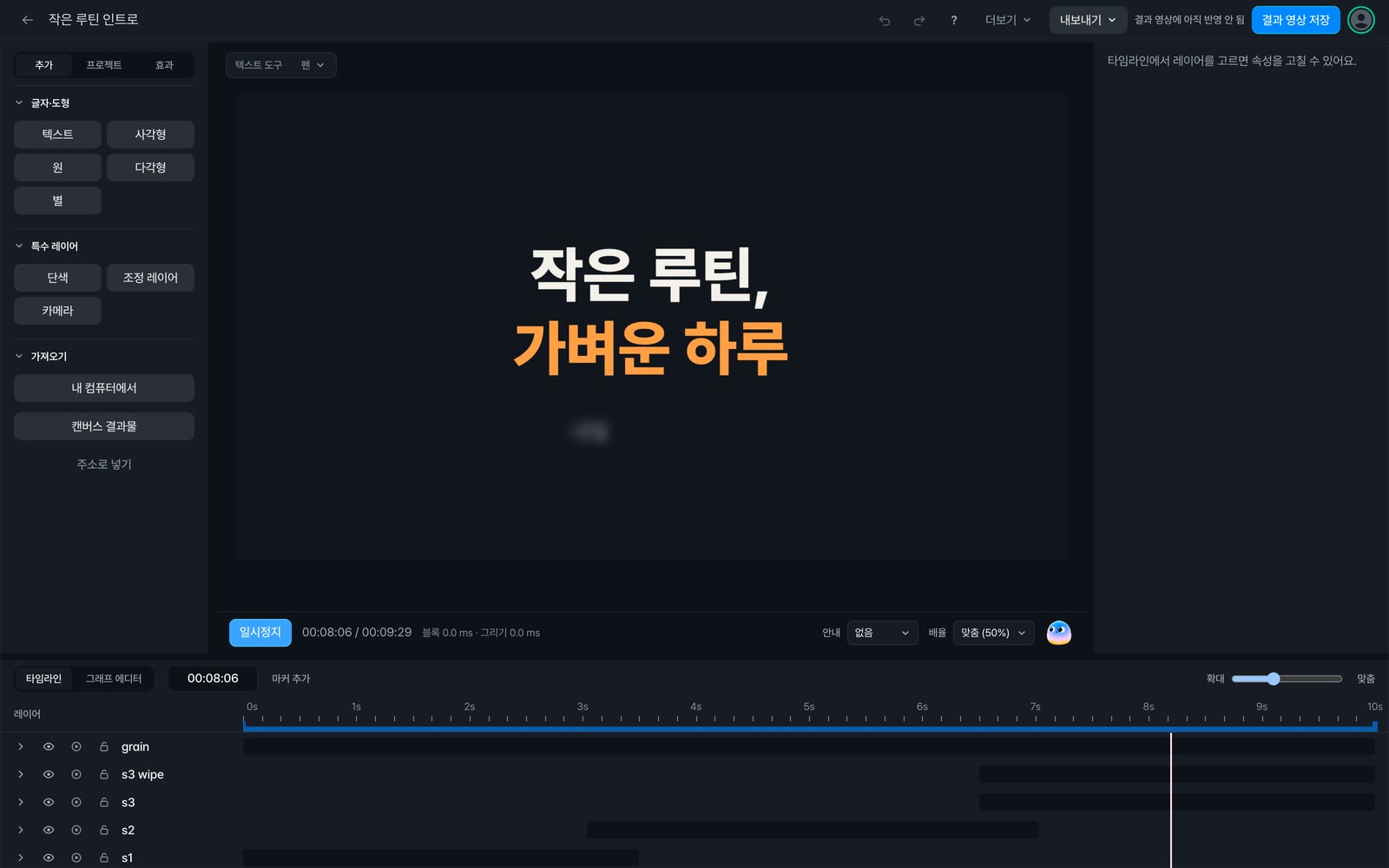
Introducing Motion for motion graphics
Animate text and shapes with layers and keyframes. You can also ask Harry to create a scene.
Upload a PDF document to generate a storyboard and scenes and turn them into a video.
Export as MP4 or as video with a transparent background. Your work is saved automatically.
3D Previz
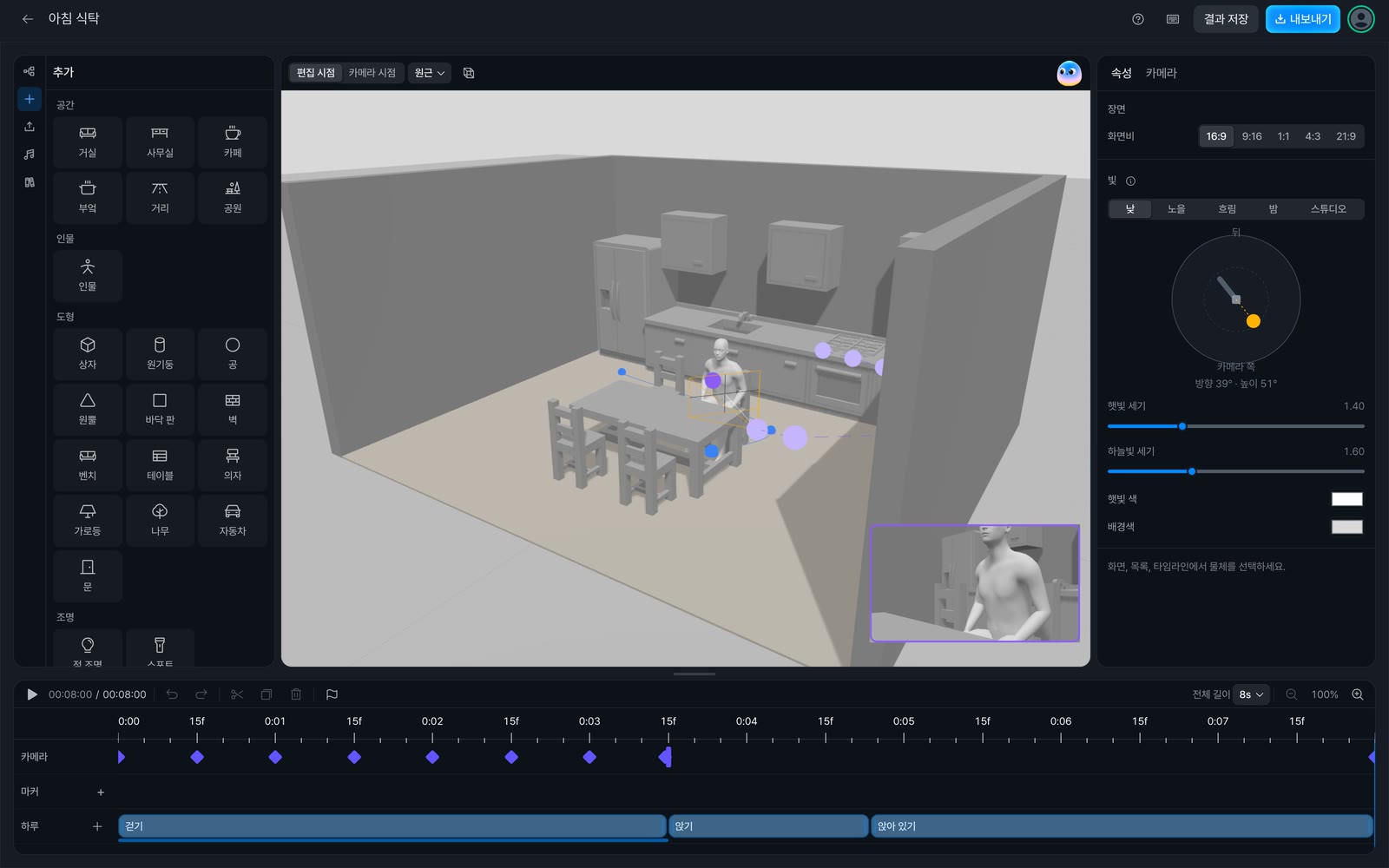
Introducing 3D Previz for planning scenes in 3D
Block out scenes and camera framing with gray blocks. You can ask Harry to lay out a scene.
Use 1,554 3D assets, save the resulting video, and continue editing later.
Canvas
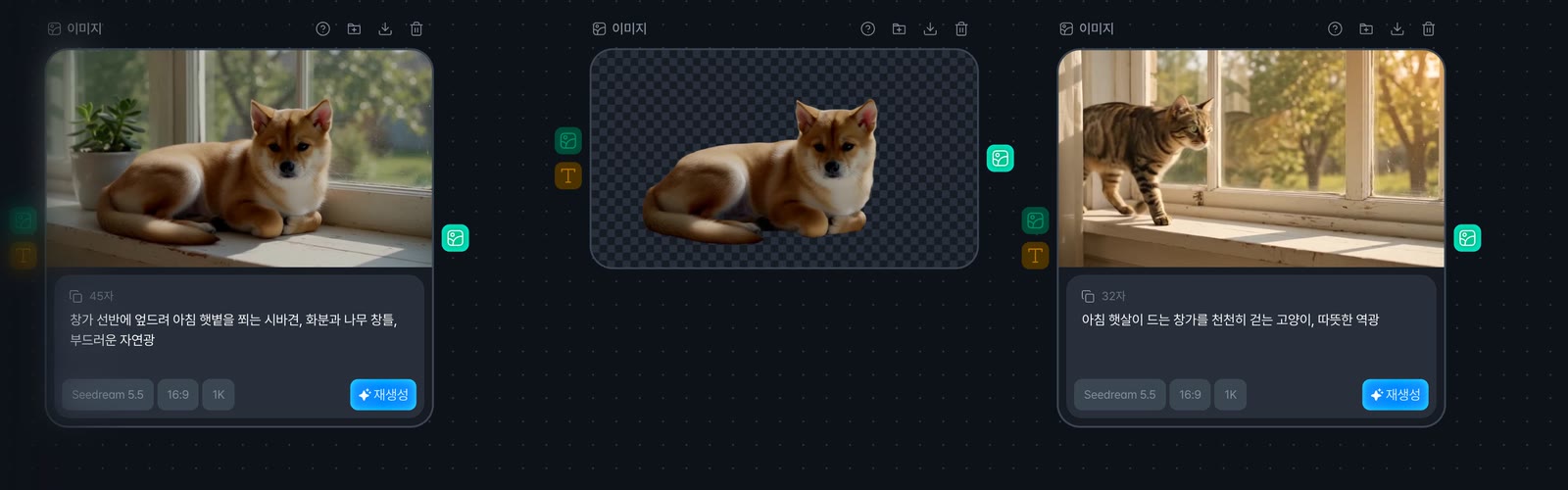
Remove image backgrounds or cut out just the part you need
Right-click an image node and choose Remove background, or use Select object and Lasso to cut out only the selected part.
The result is added next to it as an image node with a transparent background, at no credit cost. Select object works in browsers that support WebGPU.
Seedream 5.5 image model is now available
New image nodes now use Seedream 5.5 by default, with 1K and 2K resolution options. Each canvas keeps the model you last selected.
When Seedance blocks a person reference, you are guided to use a person image created with Seedream 5.5 from text only as the reference.
Edits from another tab no longer overwrite each other
If you save a canvas that is also open in another tab, you can choose Load latest version or Save this tab's version.
Fixed an issue where a canvas that failed to load opened as an empty canvas and your edits were not saved. You now see a notice and a Reload canvas button.
Smoother canvas with many nodes
Panning and zooming stutter less, and the selection box and zoom level now follow along.
Library
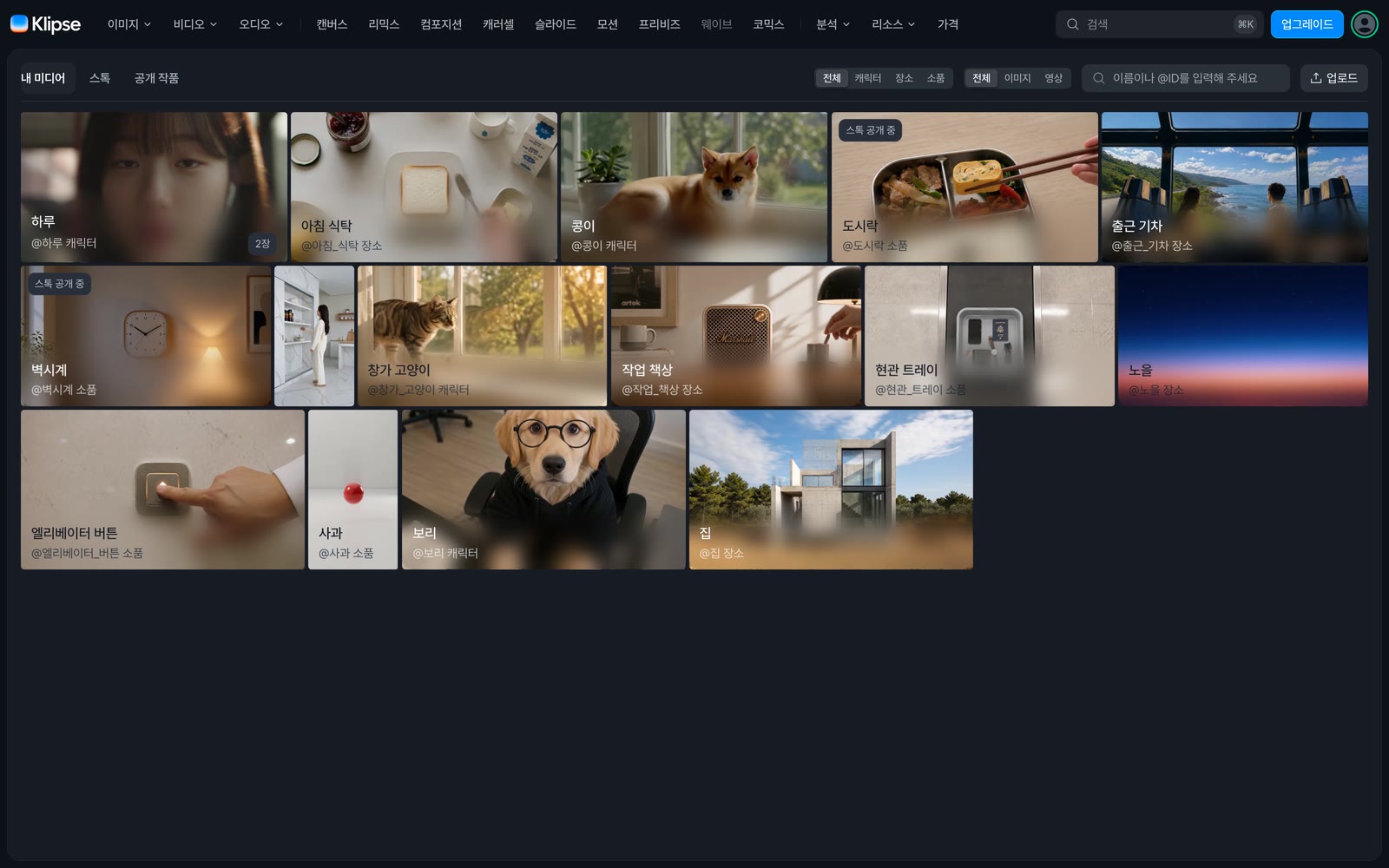
Save media in the Library and call it from prompts
Save 1 to 9 photos as one media item with an ID, then call it with @ID in a canvas prompt to use it for generation.
Publish your images to Klipse Stock
Publish images you created from text on the canvas to Klipse Stock and earn reward credits when others use them. Published works cannot be withdrawn.
Find and use stock photos from others in the Library and Carousel.
Carousel
Carousel editor now works like a design tool
Use components, text styles, and masks, save your own color themes, and add card fonts.
Fill photo frames with video and export as MP4. Video is available on paid plans.
Preview fonts in the font list
Hover over a font in the font list in Slides, Carousel, and Composition captions to preview it.
Harry
Harry chat now uses credits per message
Instead of a weekly free allowance, each chat message uses 10 credits. If Harry cannot produce a reply, the credits are returned.
Your credit balance appears at the top of the Harry window, and usage is recorded as Harry chat in your credit history.
Ask how-to questions in Help for free, up to 20 times a day
Help in the Harry window answers from the product guides and does not view or change your project.
Conversations and work in progress continue even after you refresh or close the tab.
Account
Sign up with your Google account
New sign-ups use social login, and Google is supported now.
Existing email members can keep signing in as before and switch to a social account in Settings. You receive 200 credits the first time you switch.
Social login with the same email asks before switching
A social account with a different email can be moved over with Bring over your account at the end of sign-up.
In in-app browsers such as Instagram and KakaoTalk, you are guided to open the page in an external browser.
Plans and billing
Pay with PayPal from outside Korea
Pay for subscriptions and credit packs with PayPal in US dollars. Prices appear in dollars on the English and Japanese pages.
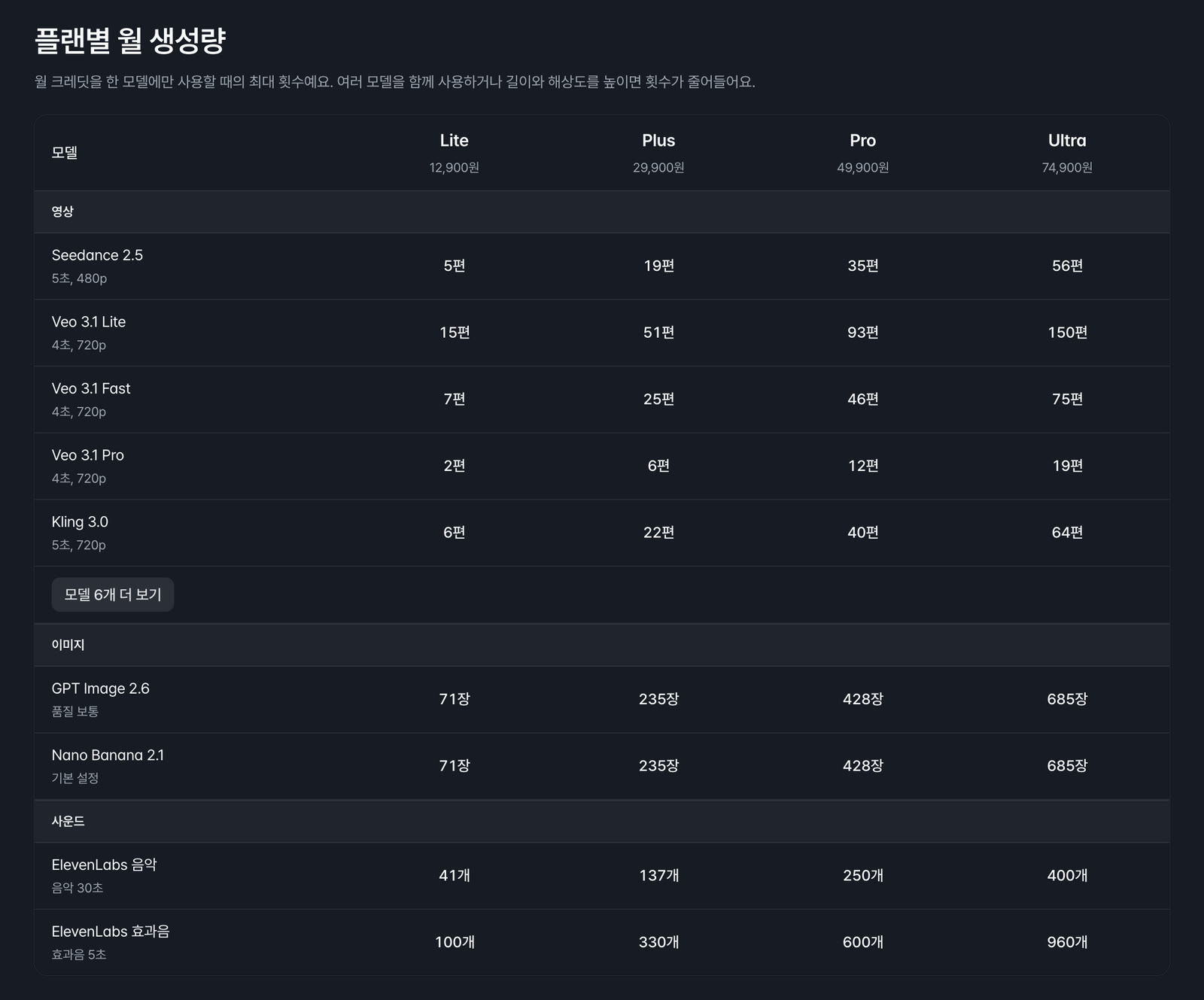
A redesigned pricing page
The pricing page shows monthly generation amounts per plan and the features included in every paid plan.
Credit packs you cannot buy on your current plan are disabled in the list, with the required plan shown.
Website
Model comparison pages
Compare the specs and strengths of two models side by side. Pick a model on the models page and open a comparison from its detail page.
More complete Japanese translation
Menus and messages that appeared in English on the Japanese pages now appear in Japanese.