October 2026 update
Website
A new landing page

As you scroll, Canvas, Composition, and Highlight are introduced scene by scene.
The first screen also loads faster.
Model pages are here
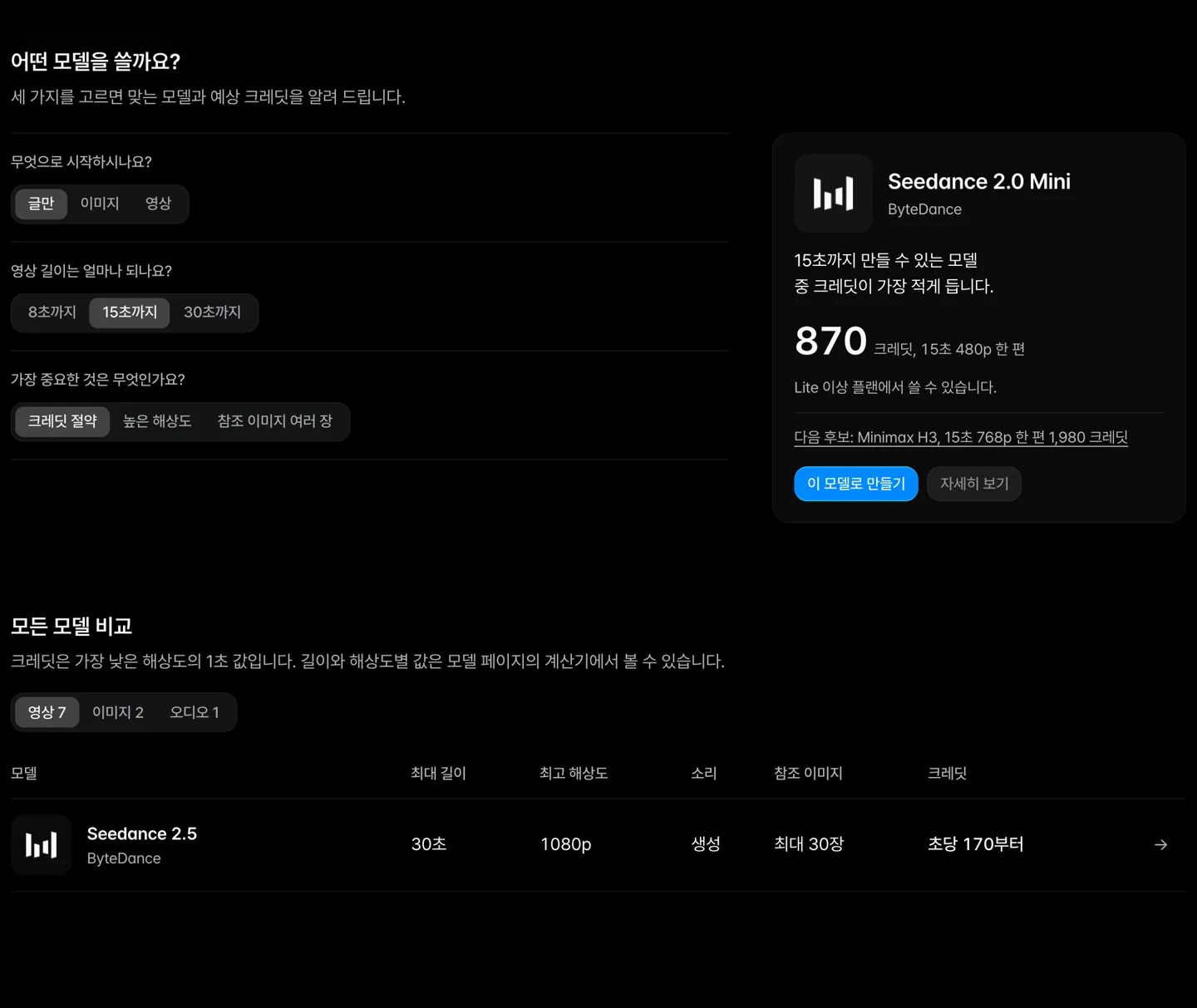
Compare length, resolution, sound, and credits across video models in one table.
Pick three options and get a recommended model with its estimated credits.
Each model page includes a credit calculator.
The ambassador program page is live
We are recruiting creators who make content with Klipse.
Choose between the recurring content and project formats, and apply directly on the page.
Canvas
Introducing Klipse Assistant
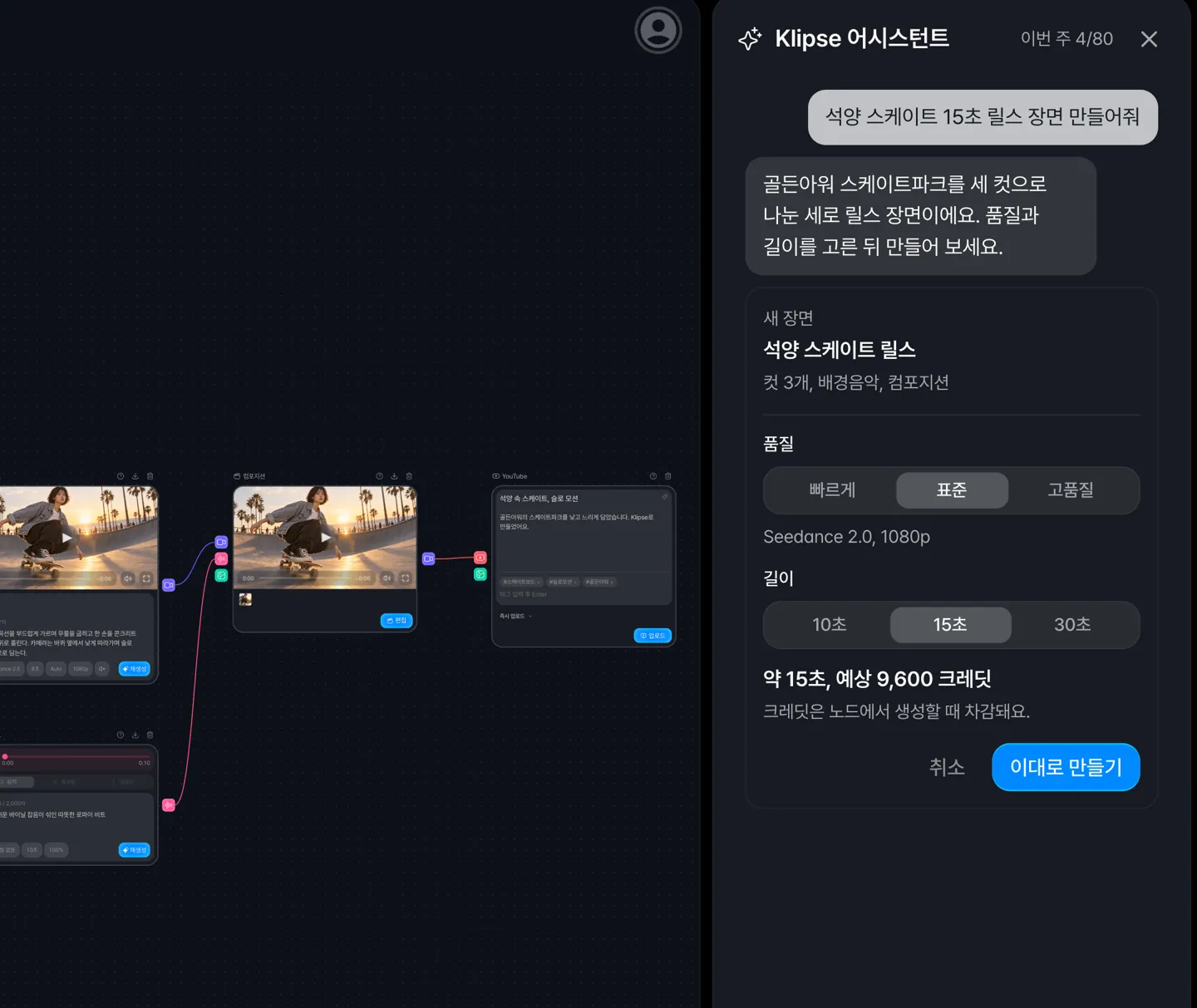
Describe what you want on Canvas and the assistant suggests a scene layout or node edits. Nothing changes until you press the button to apply it.
You can also ask how to use Klipse.
Start right from an empty canvas
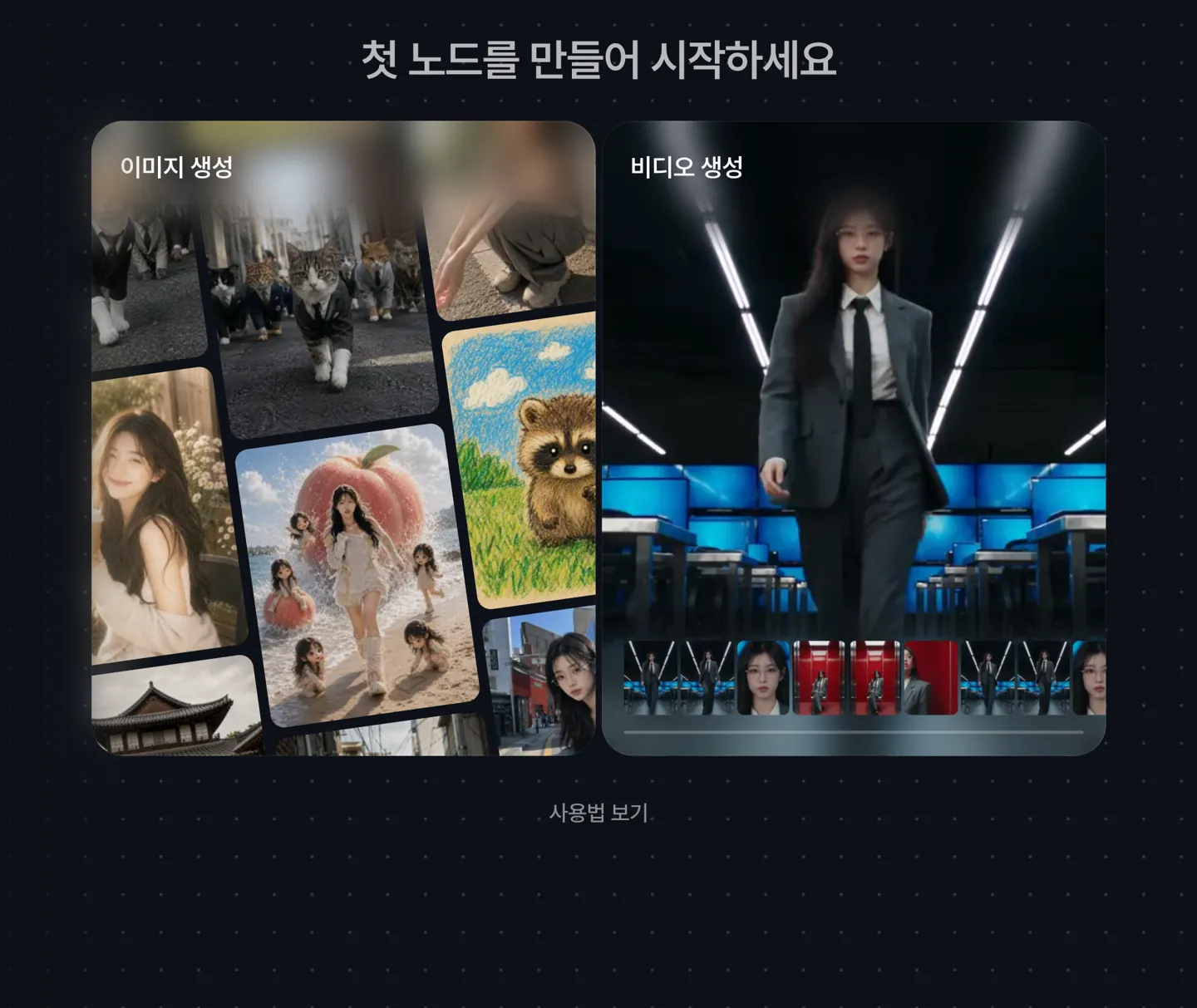
An empty canvas now shows image and video generation cards. Click one to add that node.
When your first image and video are done, the next step is shown.
Help moves to a side panel
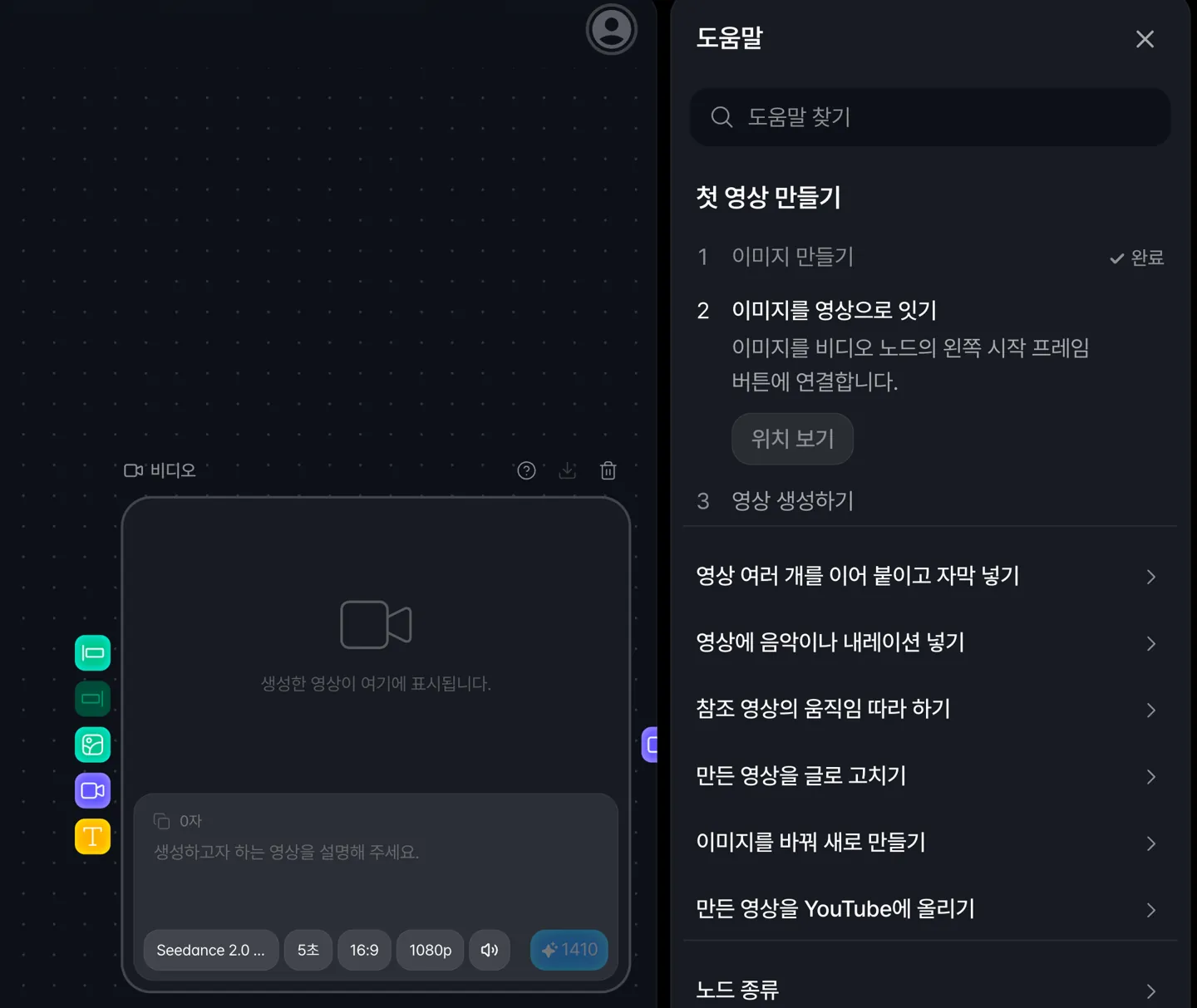
Read help in the right-hand panel while keeping your canvas in view.
The steps for making your first video are checked off automatically as you go.
Keyboard shortcuts, model comparisons, and FAQs are there too.
Nano Banana 2.1 is supported
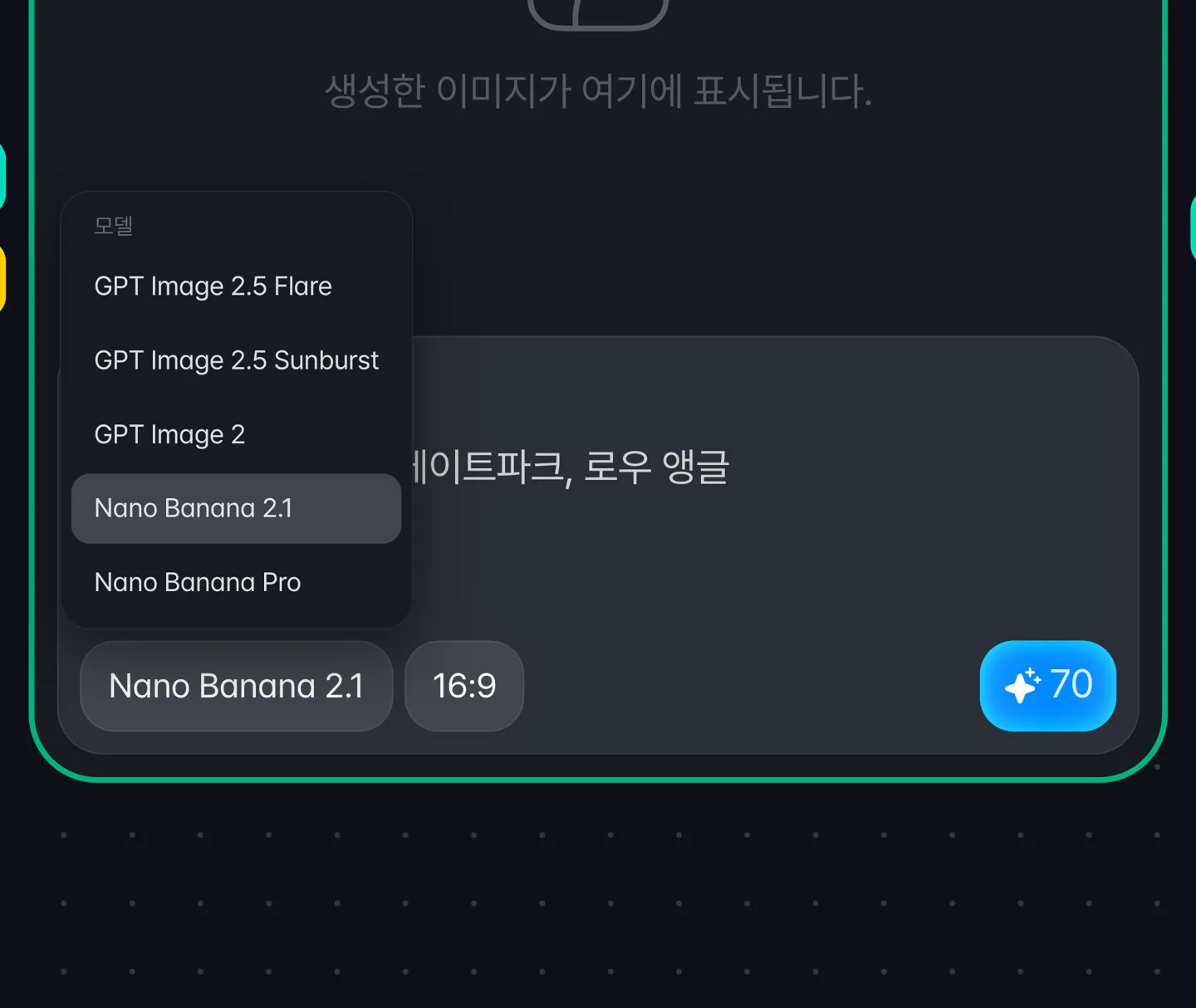
Nano Banana 2 has been updated to 2.1.
Image generation now costs 70 credits instead of 150, and each reference image costs 10 credits instead of 20.
Clearer generation errors
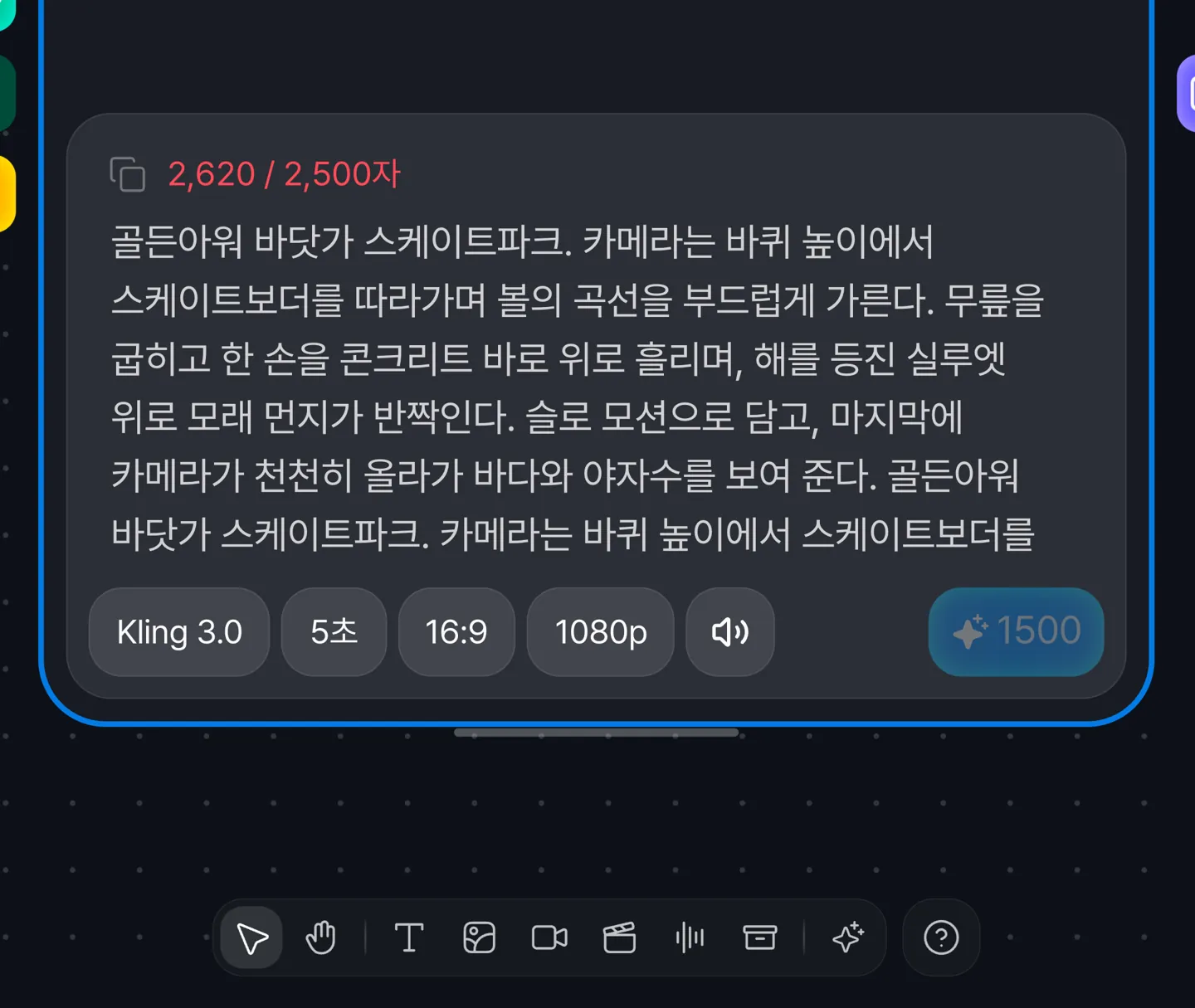
If a prompt exceeds the model's limit, you are told before generation starts.
When an image generation is blocked, the reason is shown.
Videos that take longer to generate are now followed through to completion.
Highlight
Start a new highlight in the workspace
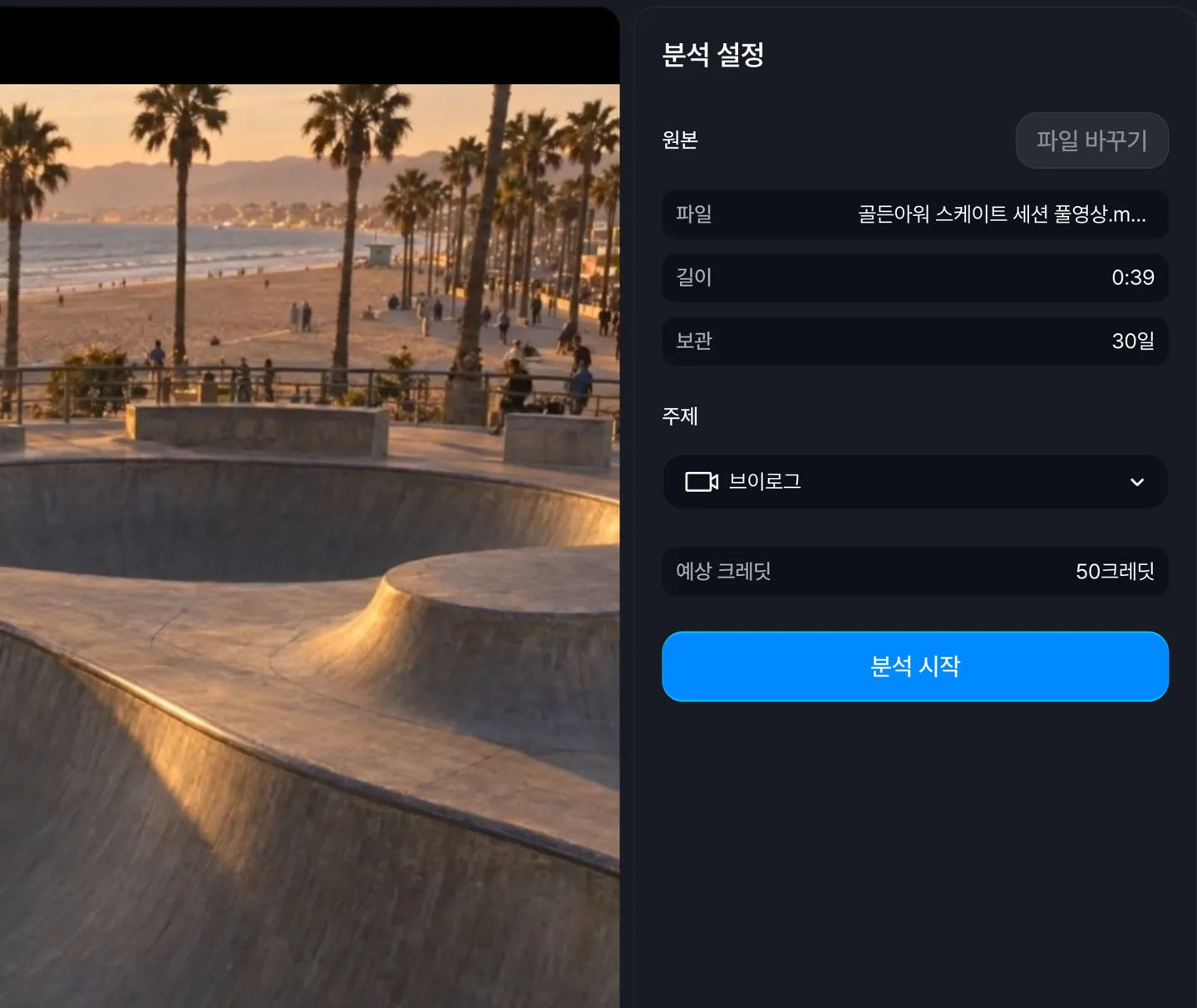
Choose a video and set up the analysis on a single screen.
You can drag a video file into the middle of the screen.
When the analysis finishes, the segments it found fill the track below.
From candidates to shorts on one screen
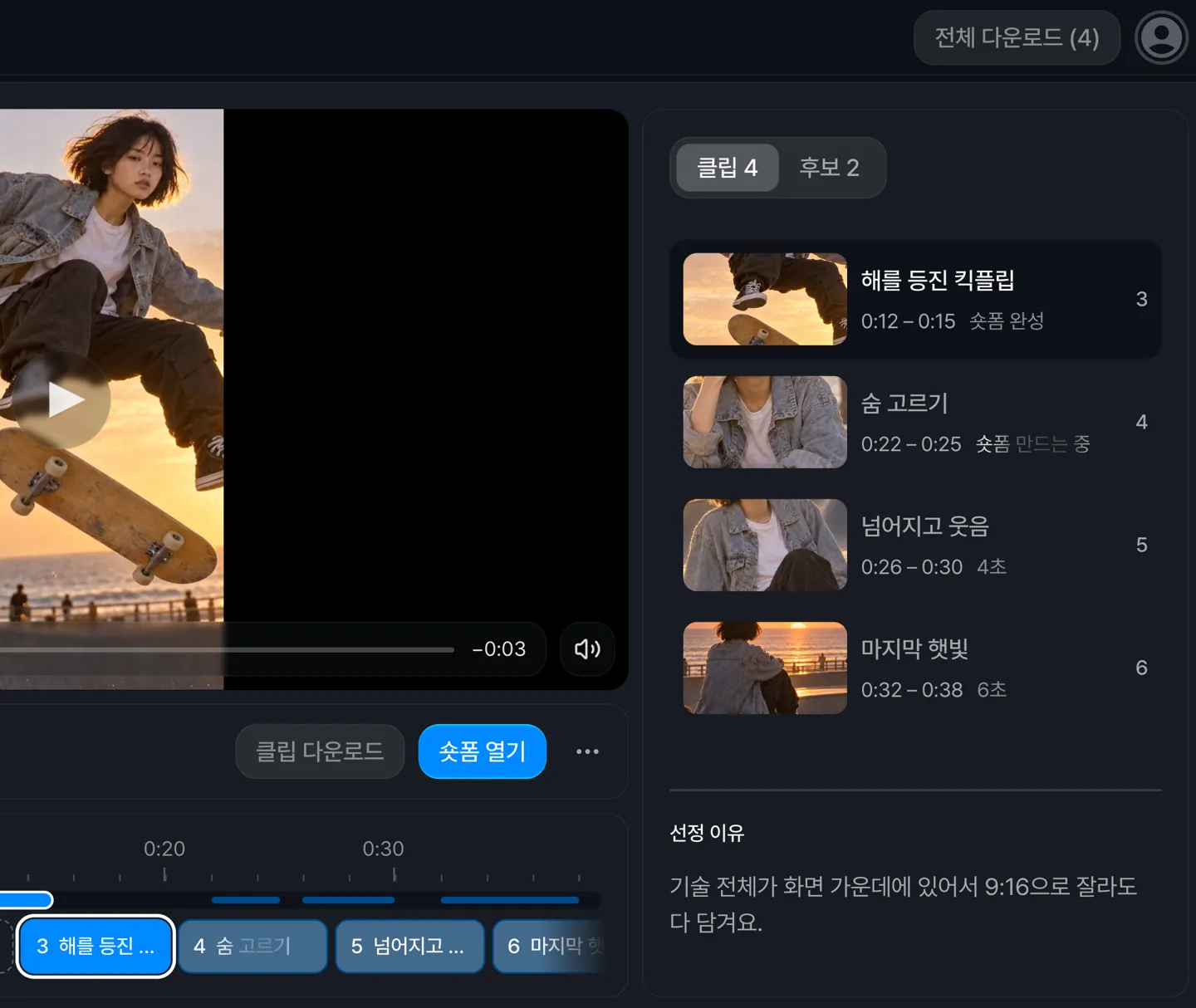
Each segment shows its progress from candidate to clip to short.
After extracting, you can pick more of the remaining candidates and extract them too.
Review one segment at a time on your phone
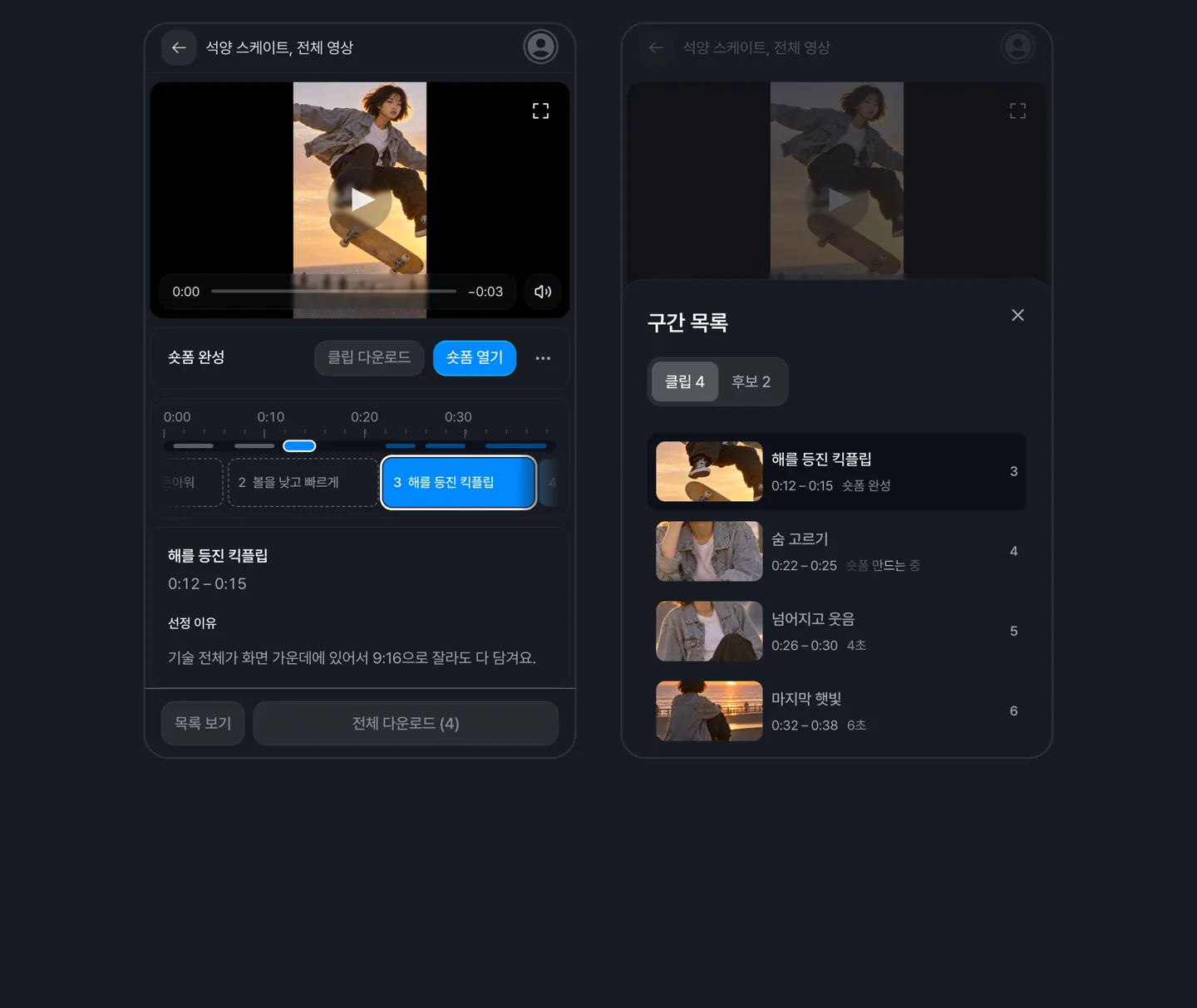
The current segment's title and the reason it was picked appear below the video. Open the list view to see every segment.
Notifications when work is done
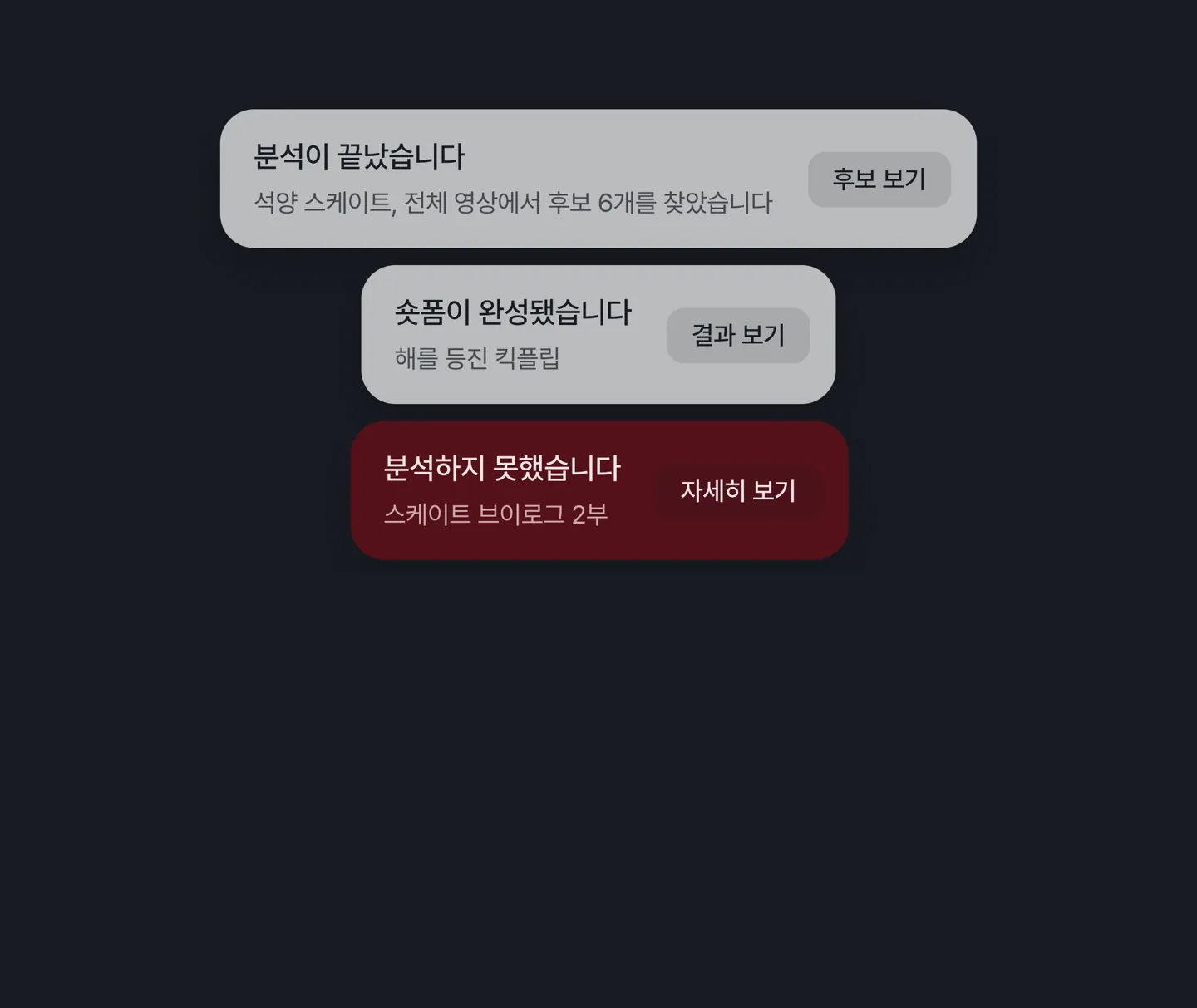
You are notified when an analysis, clip extraction, or short render finishes or fails, even from another screen.
Turn on browser notifications to be notified while you are in another tab.