September 2026 update
Plans and subscription
Introducing the Lite plan
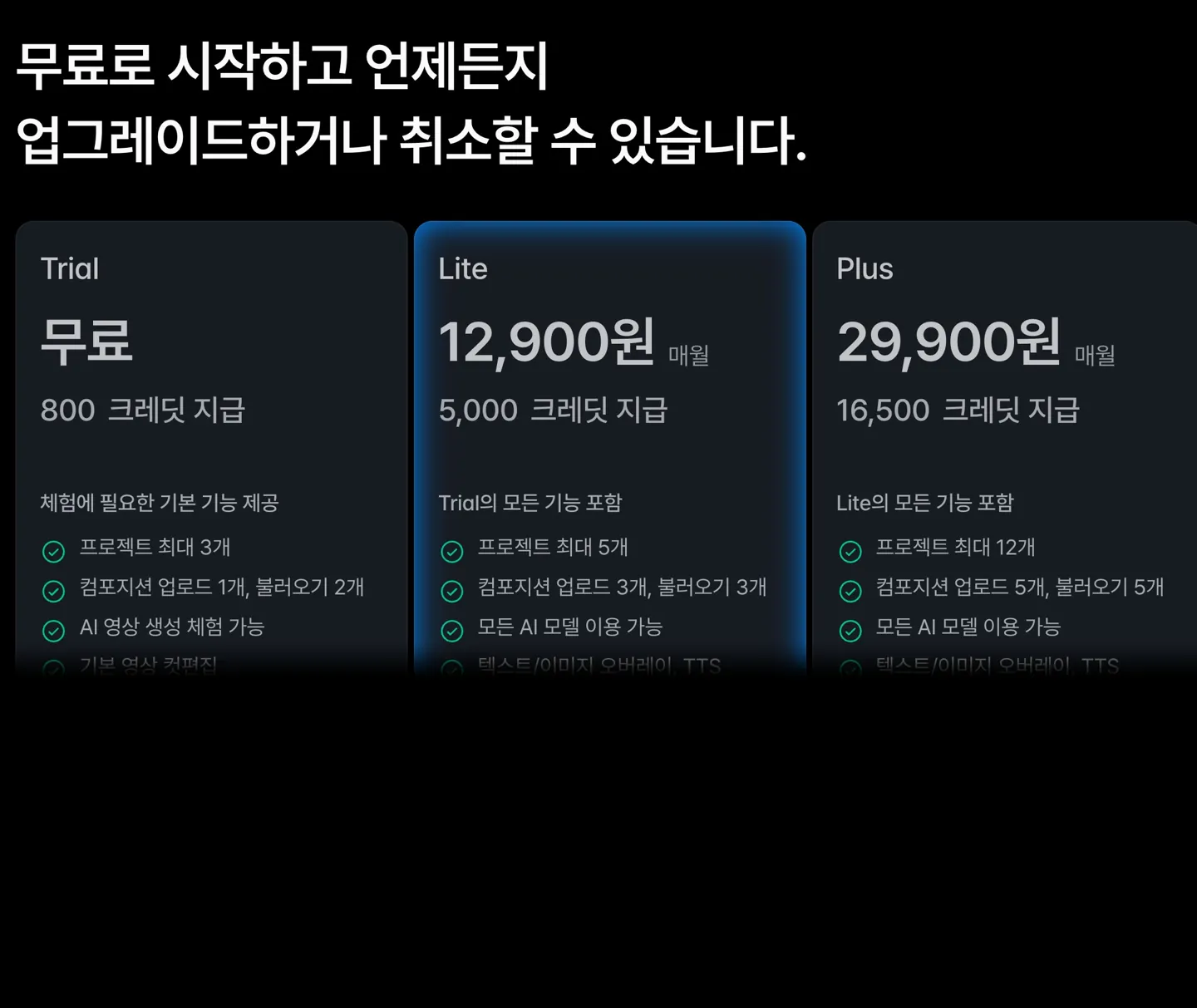
Lite is ₩12,900 a month and includes 5,000 credits every month.
Basic has been renamed Plus, and Max has been renamed Ultra.
See your credits and when they expire
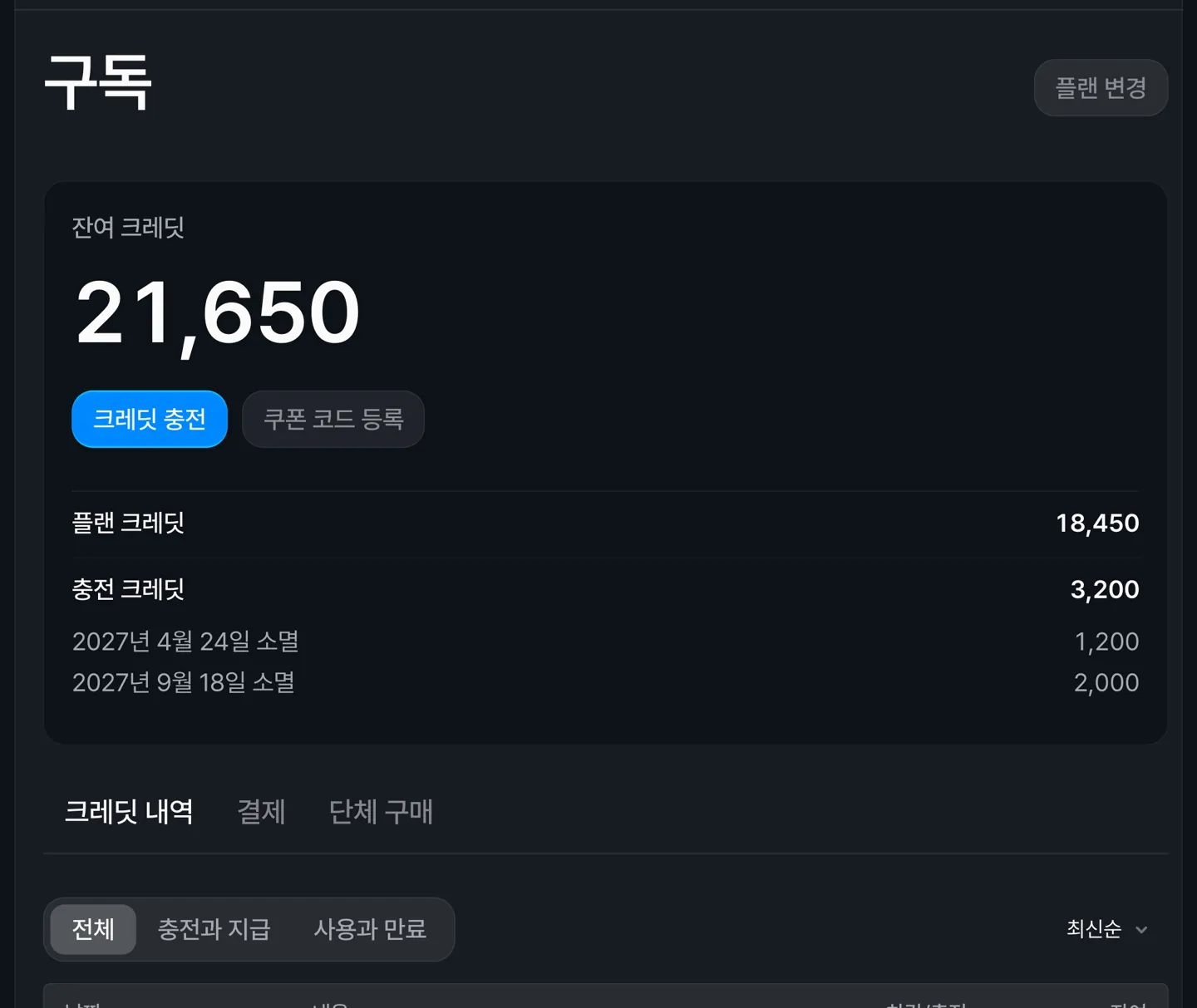
Credits and billing are now managed together on the Subscription page.
Plan credits and top-up credits are shown separately, and top-up credits list how many expire on each date.
Payment methods and history in the Billing tab
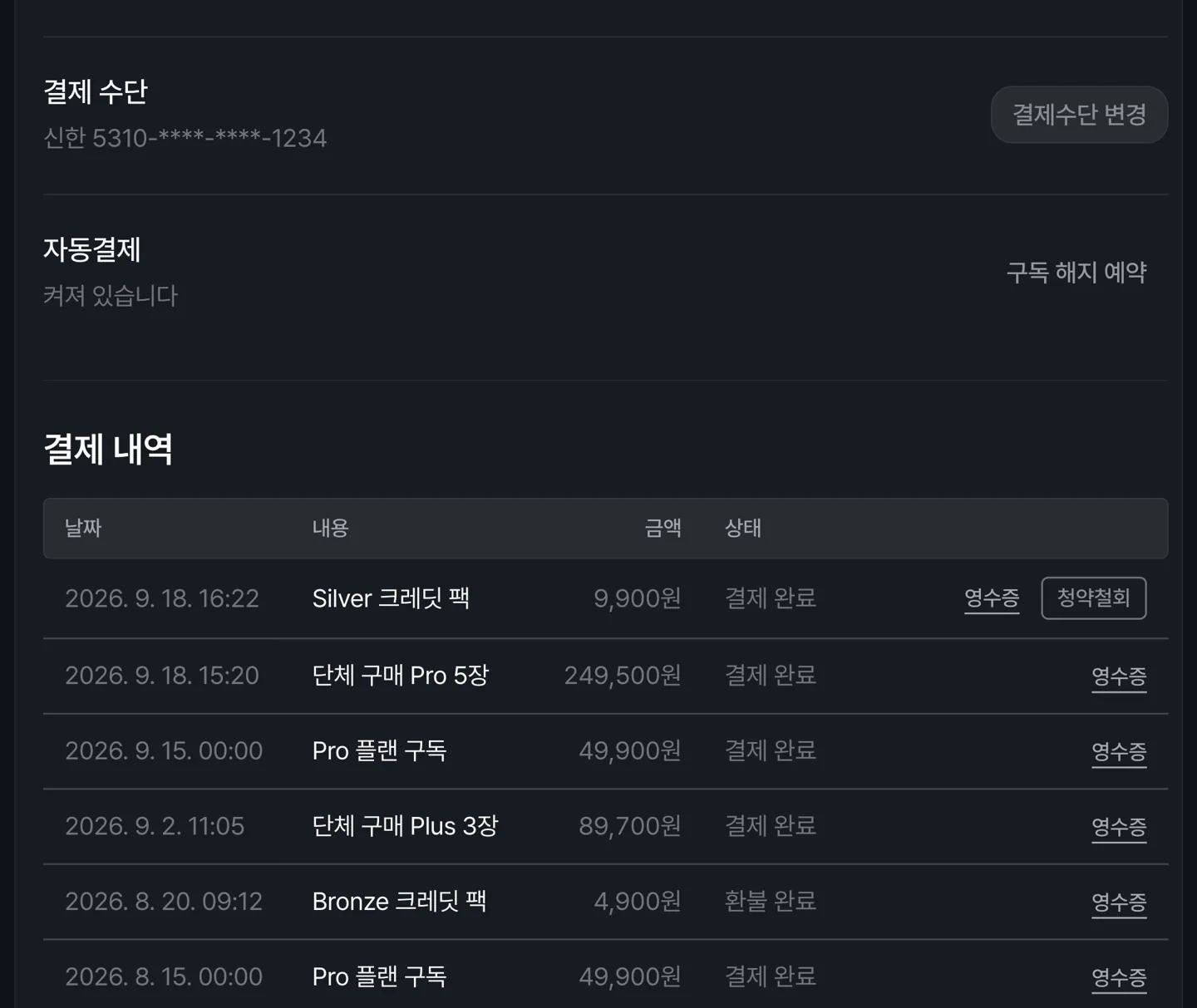
Change your payment method and view receipts.
If none of the credits have been used, you can withdraw a top-up within 7 days and a subscription within 24 hours.
Buy plans for a group in one payment
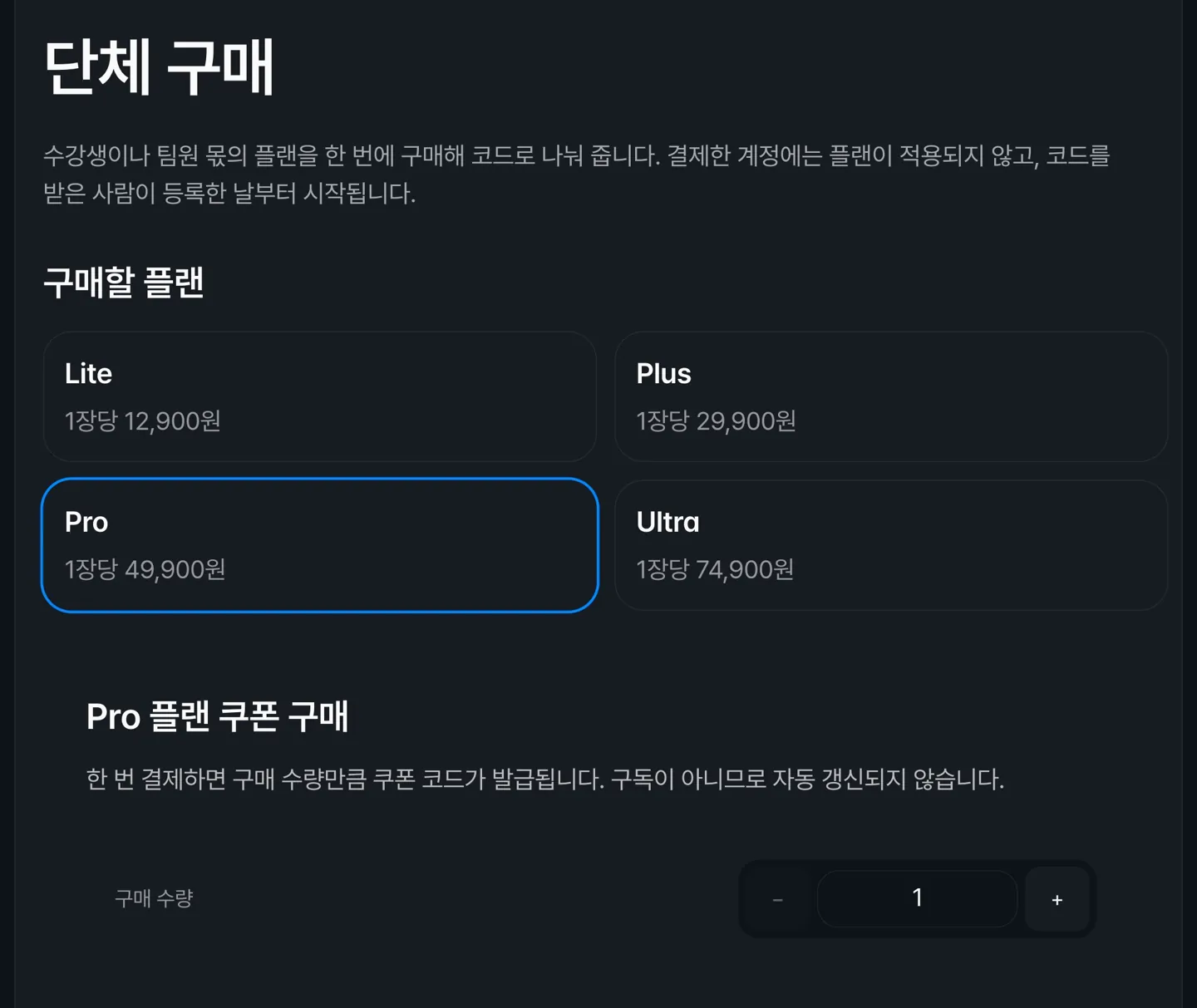
You receive one coupon code per plan purchased, and each plan applies for one month from the day its code is redeemed.
AI models
MiniMax H3 is supported
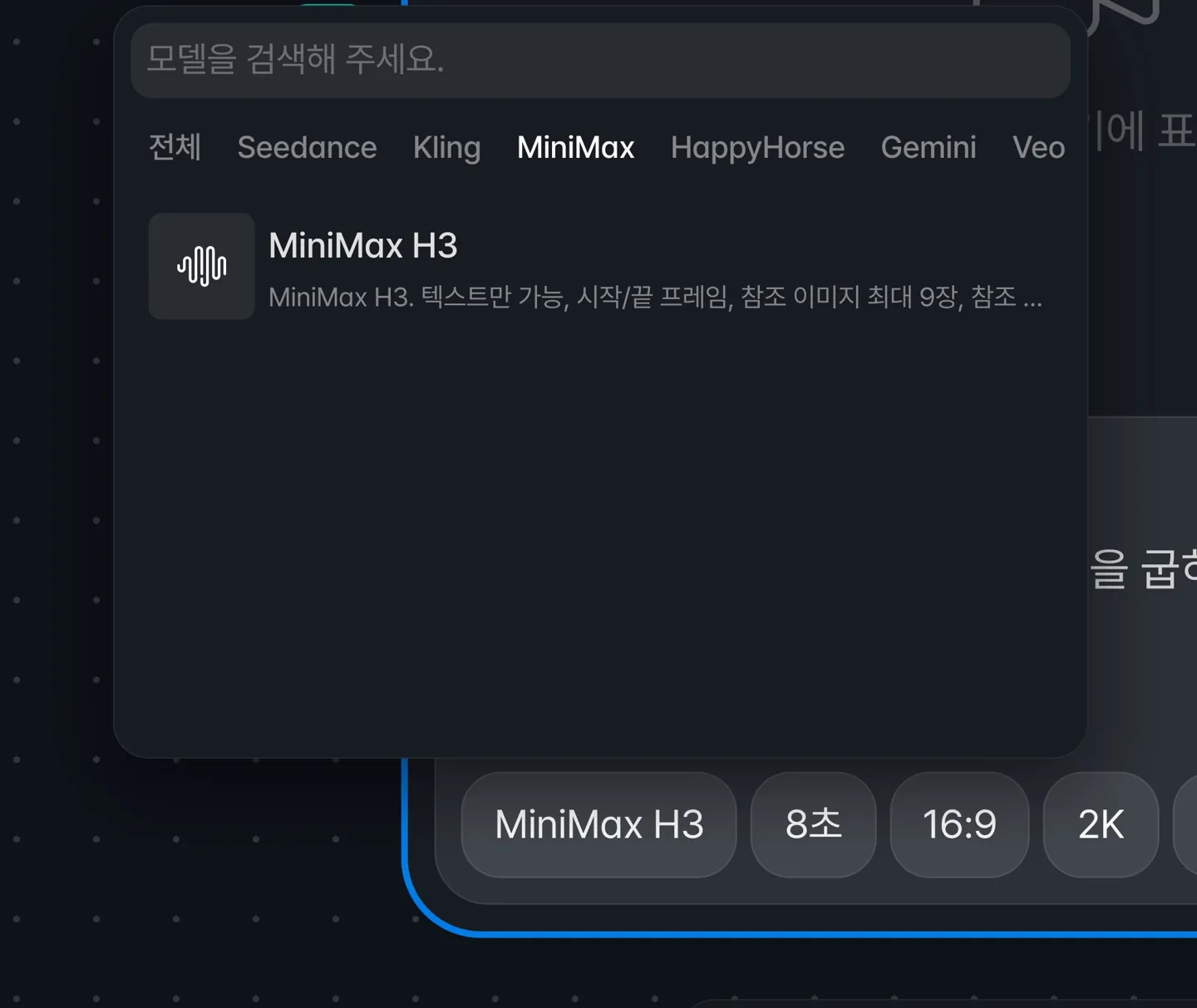
Generate from text alone or set start and end frames, with up to 9 reference images.
Resolution is 768p or 2K, and length ranges from 4 to 15 seconds.
Gemini Omni Flash is generally available
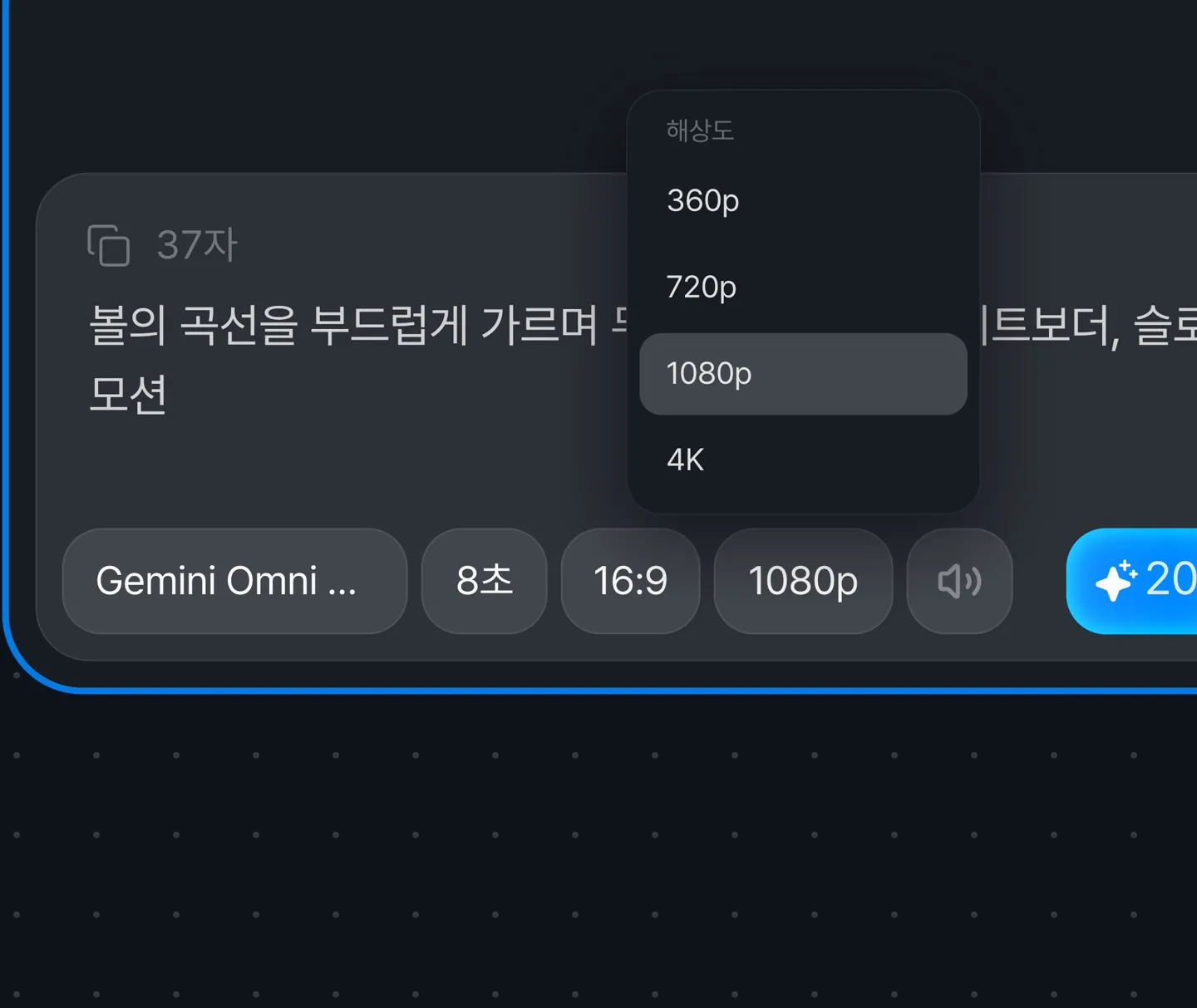
Choose 360p, 720p, 1080p, or 4K, and set a length from 3 to 10 seconds.
GPT Image 2.5 is supported
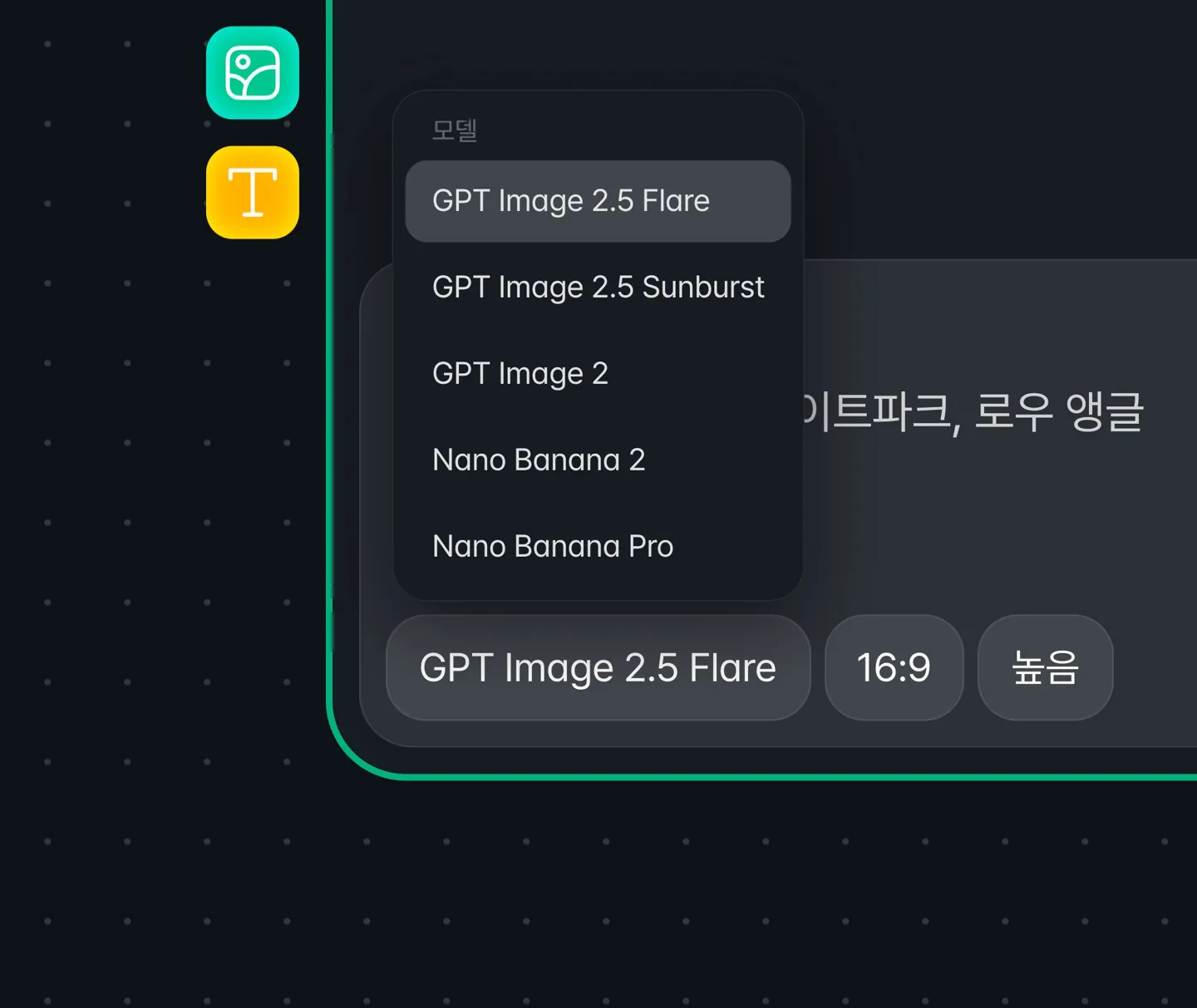
Both Flare and Sunburst are available, and new image nodes use Flare by default.
Kling Omni now goes up to 15 seconds
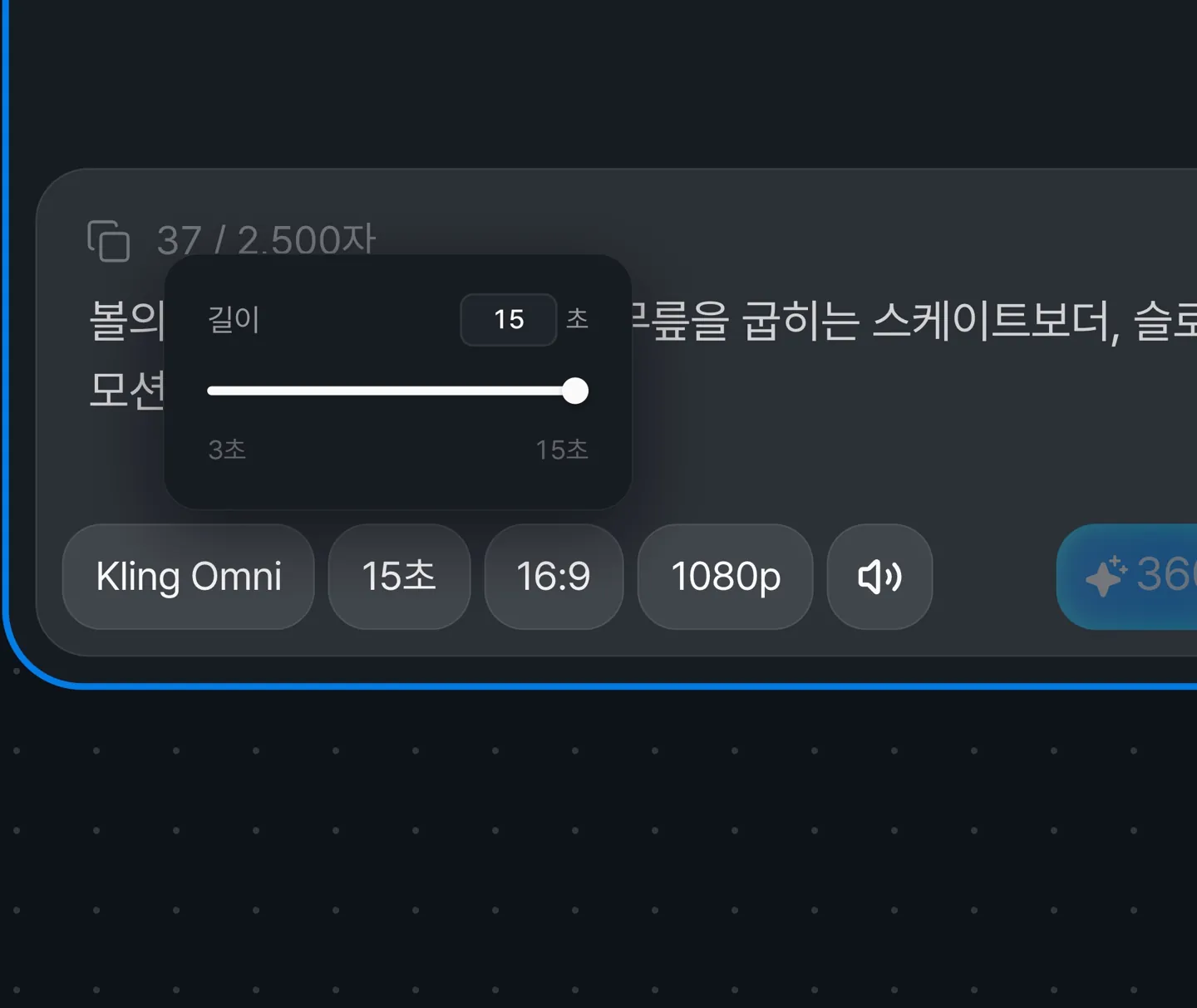
Choose a length from 3 to 15 seconds. The previous maximum was 10 seconds.
Canvas
Stickers in Edit image
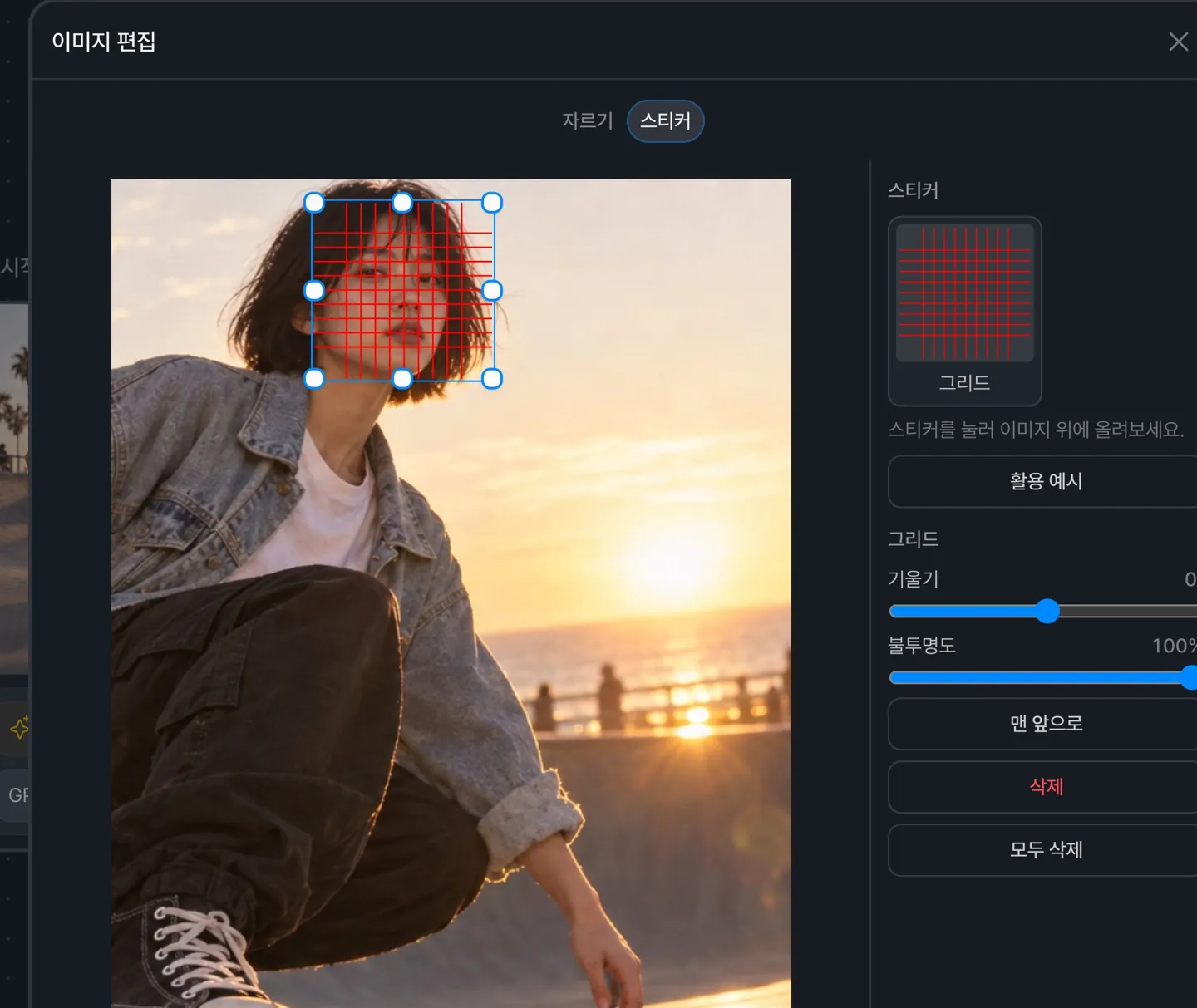
Right-click an image node, open Edit image, and add grid stickers from the Stickers tab.
You can adjust their size, tilt, and opacity.
Regenerate an image from another angle
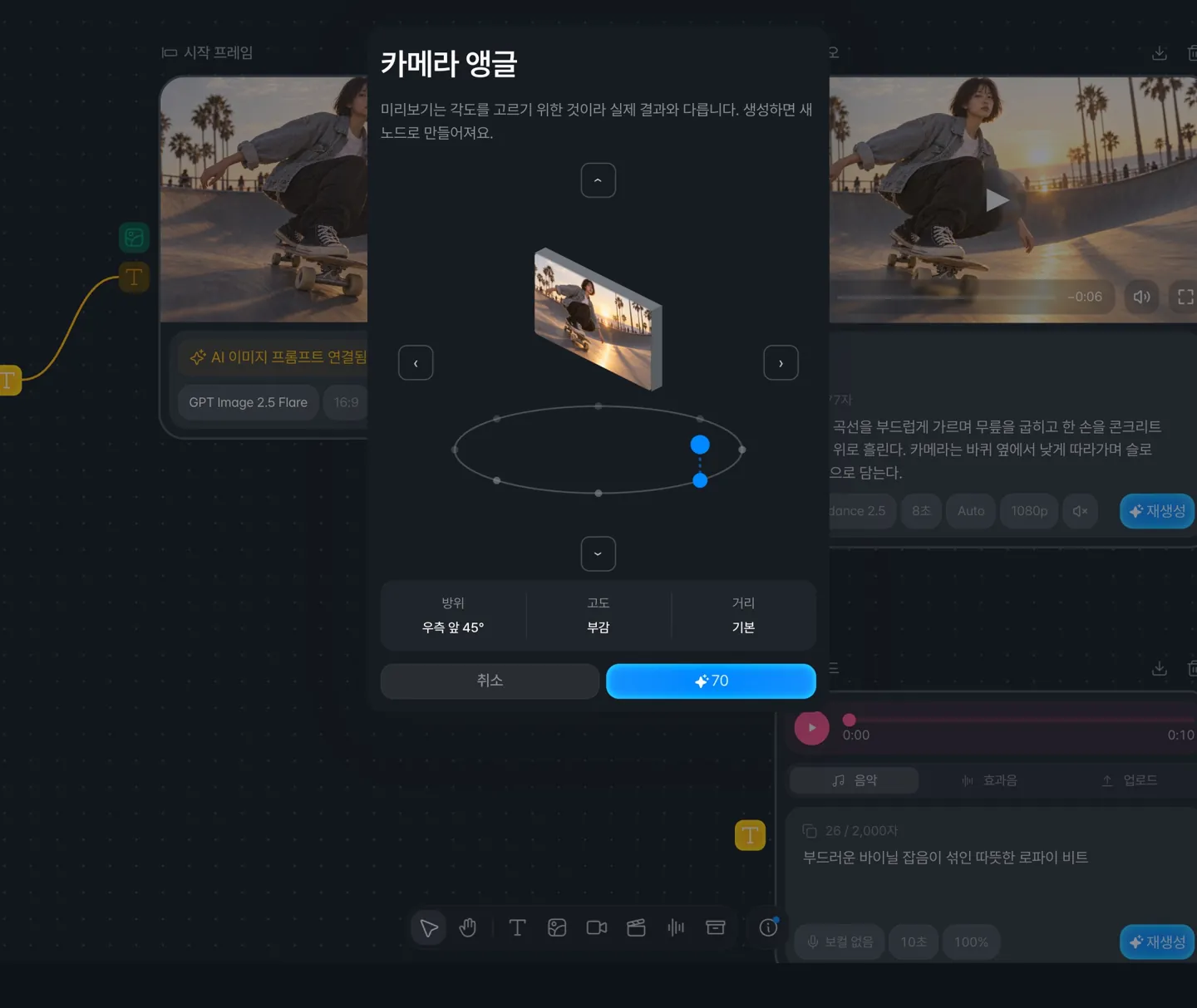
Right-click an image node and open Camera angle.
Choose from 8 directions, 4 heights, and 3 distances, and a new image node is created next to the original.
Choose what an AI prompt is for
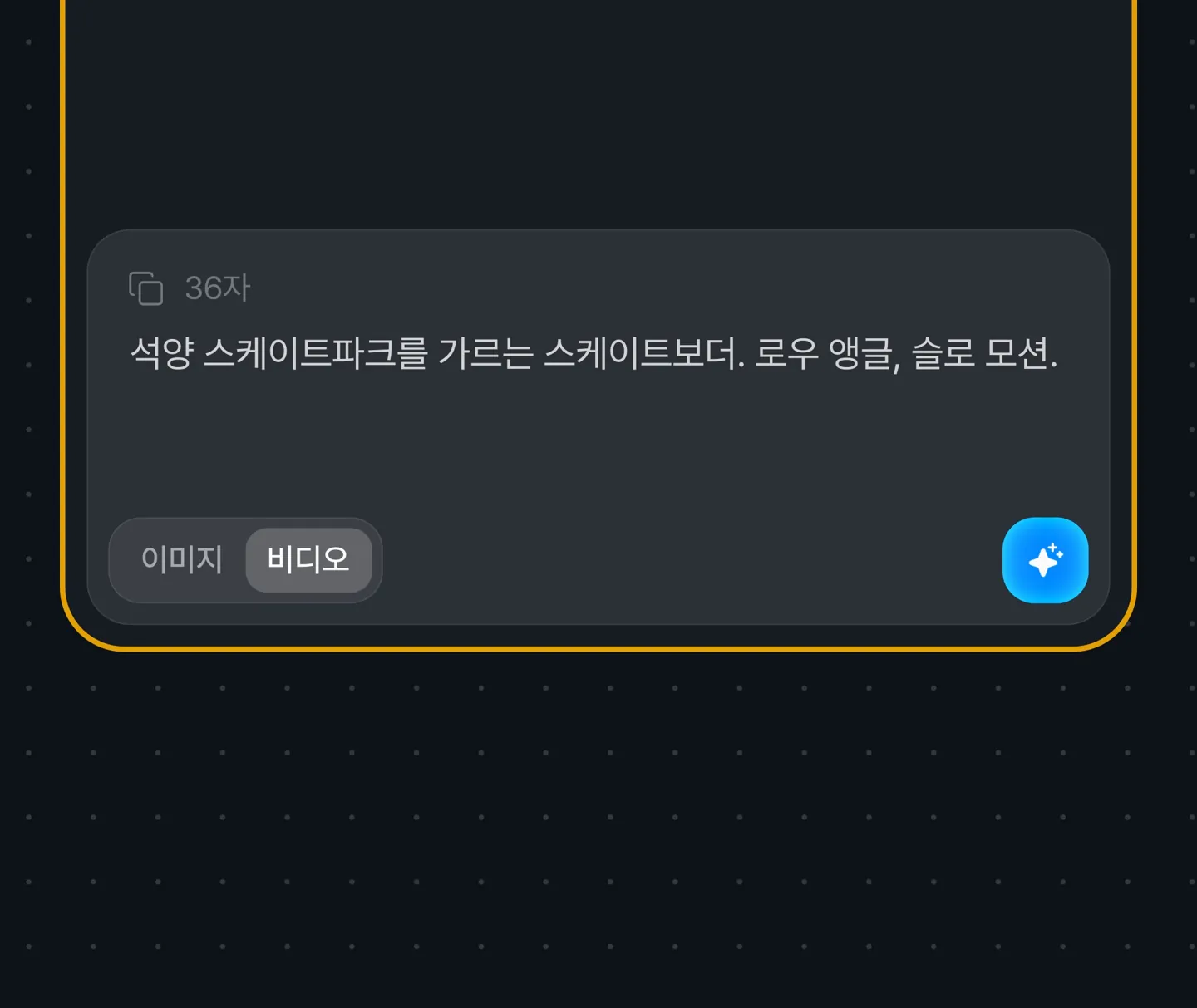
Choose image or video below the input to get a prompt written for that purpose.
Connecting it to an image or video node sets the purpose automatically.
Upload your own audio files
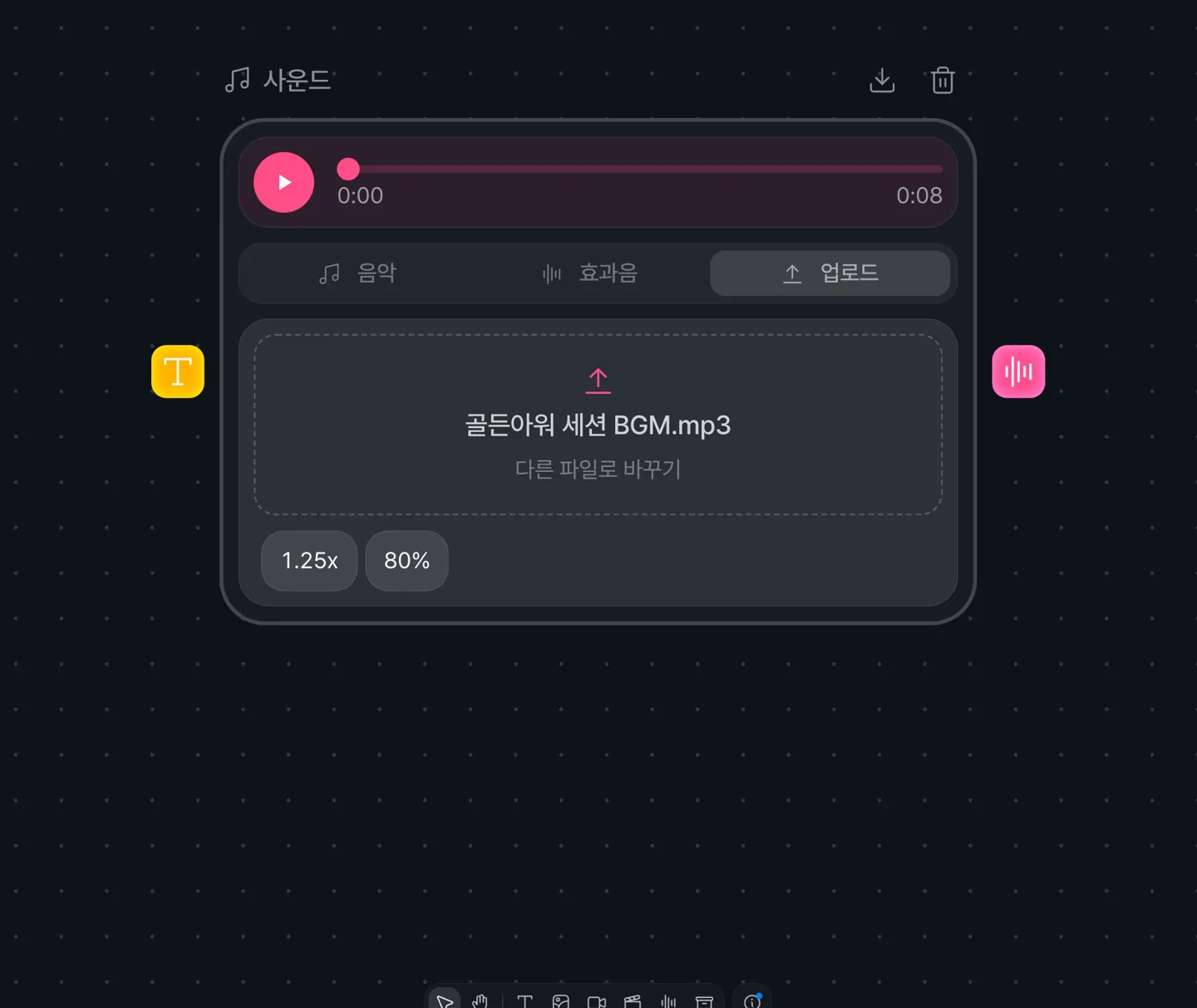
The sound node has a new Upload tab, and dropping an audio file onto the canvas creates a sound node.
You can adjust the speed and volume of uploaded files.
Extract the first and last frames as image nodes
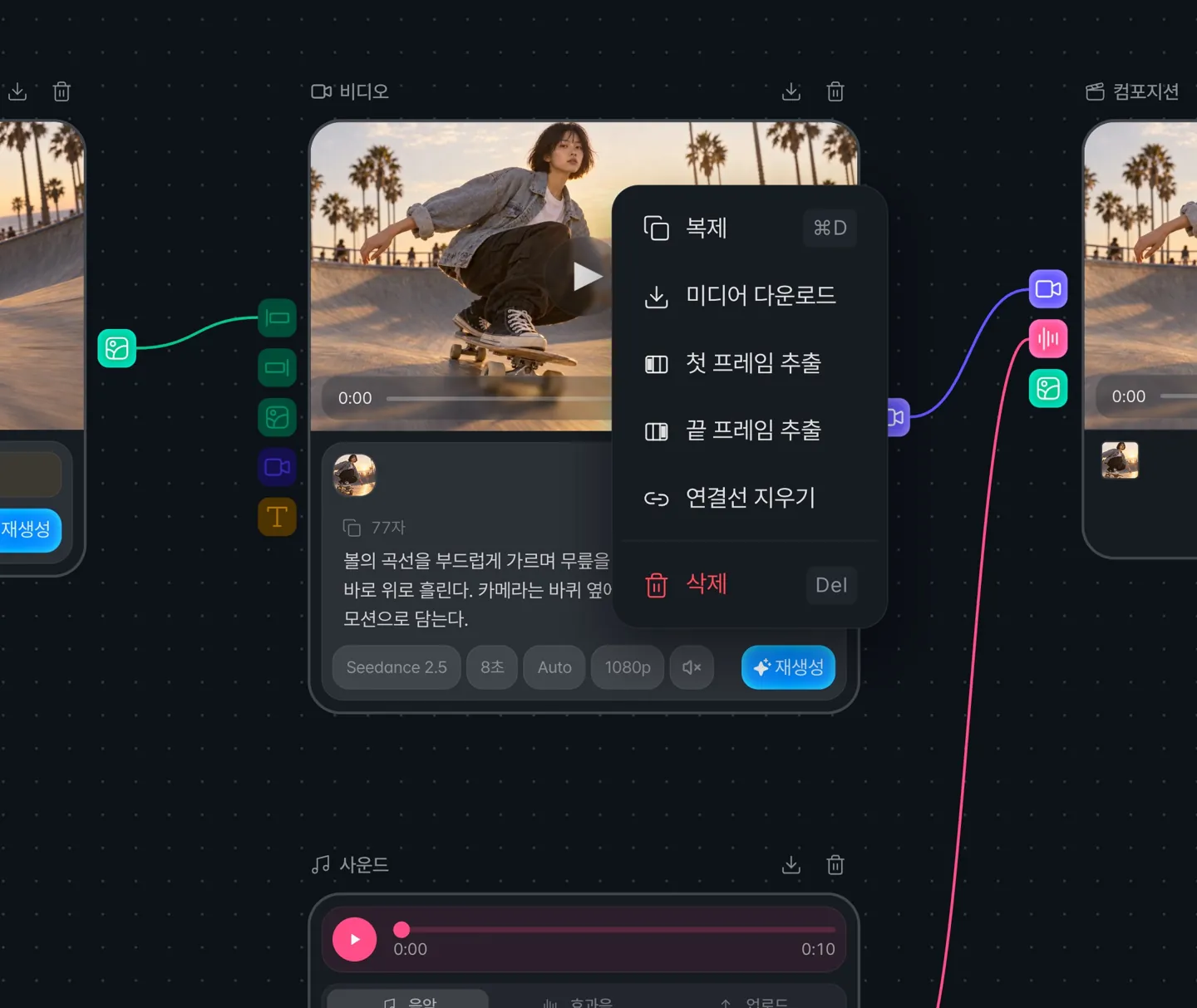
Right-click a finished video node and choose to extract its first or last frame.
Use the extracted frame as the start frame of your next video.
Renamed to Canvas and Composition
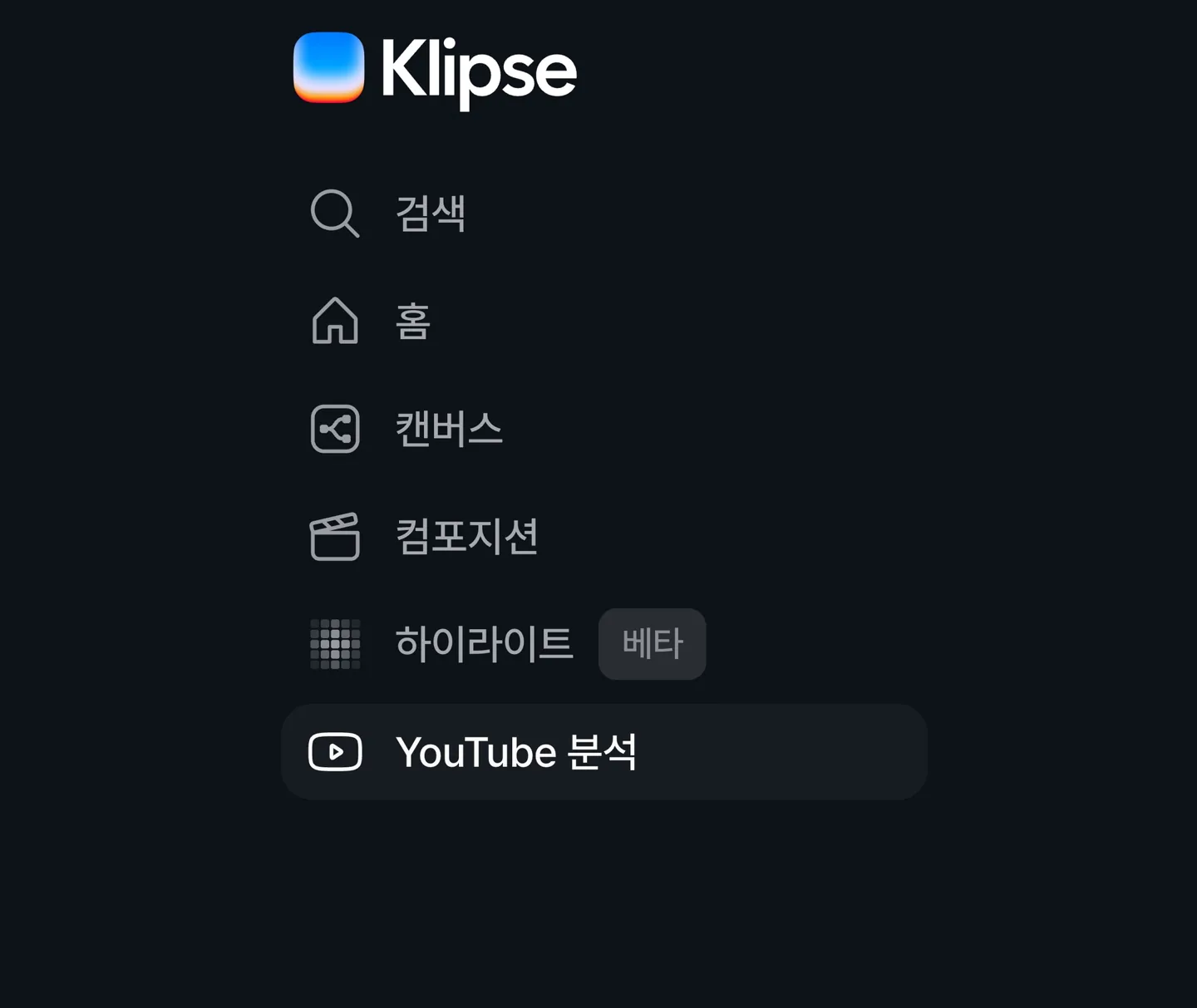
Node Canvas is now Canvas, and Video Editor is now Composition.
Highlight
Short results are now built around exporting
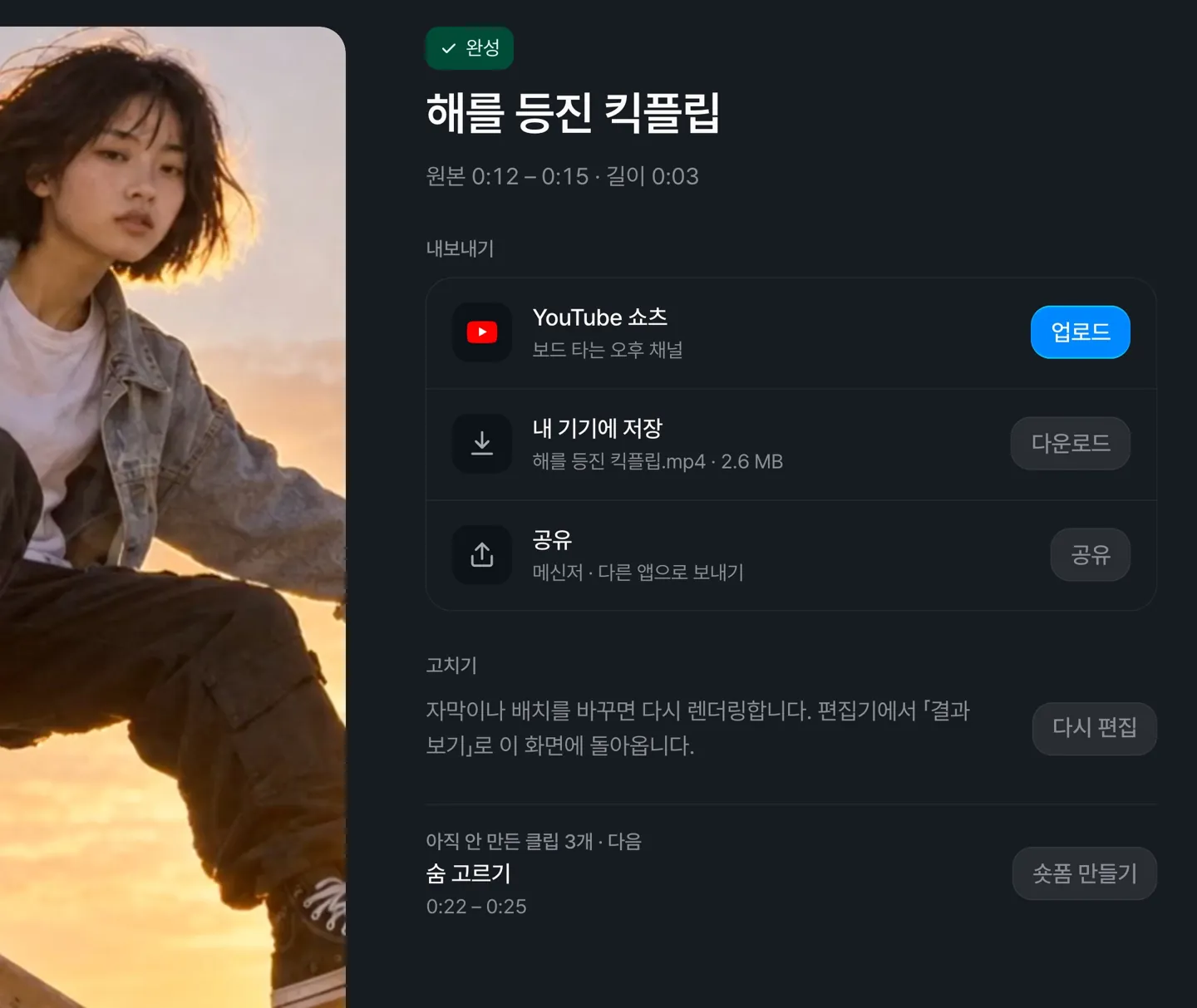
Upload to YouTube Shorts, save to your device, or share, all from one screen.
Sharing appears in browsers that support sharing videos.
Export buttons stay at the bottom on mobile
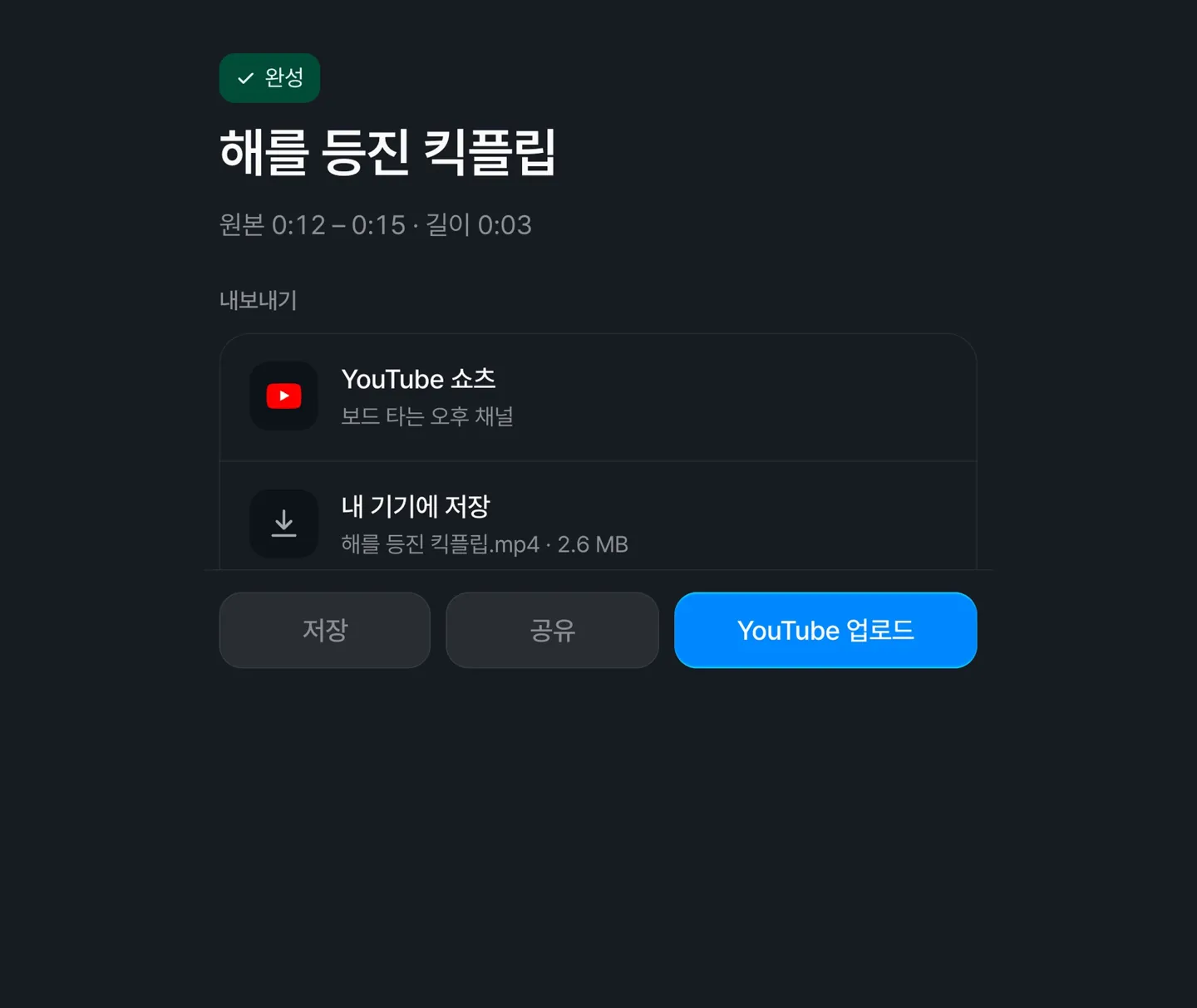
Save, share, or upload to YouTube straight from the bar.
AI clip edit conversations are saved
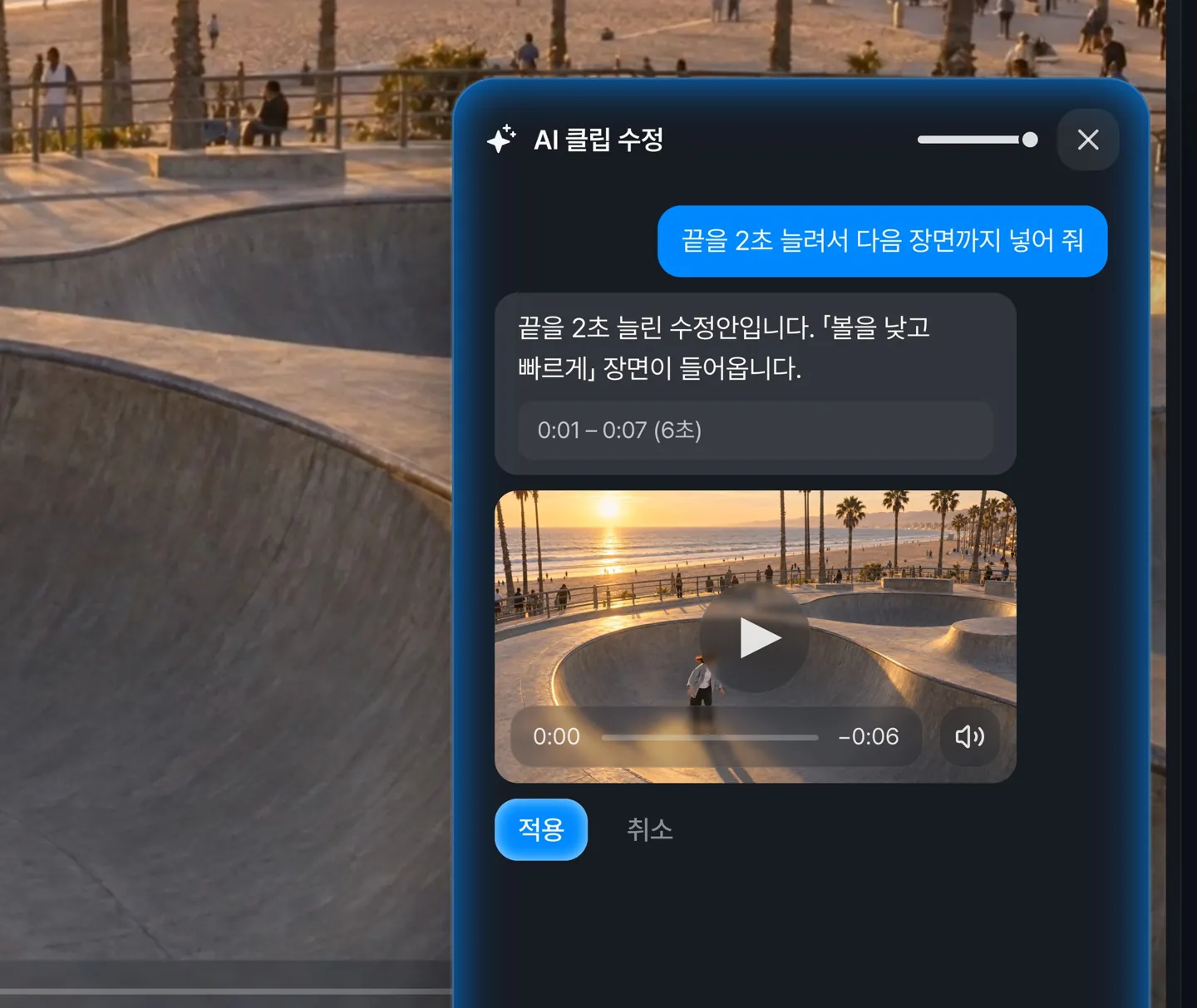
Your conversation stays after a refresh or after switching clips, and each clip keeps its own history.
Sort segments by recommendation
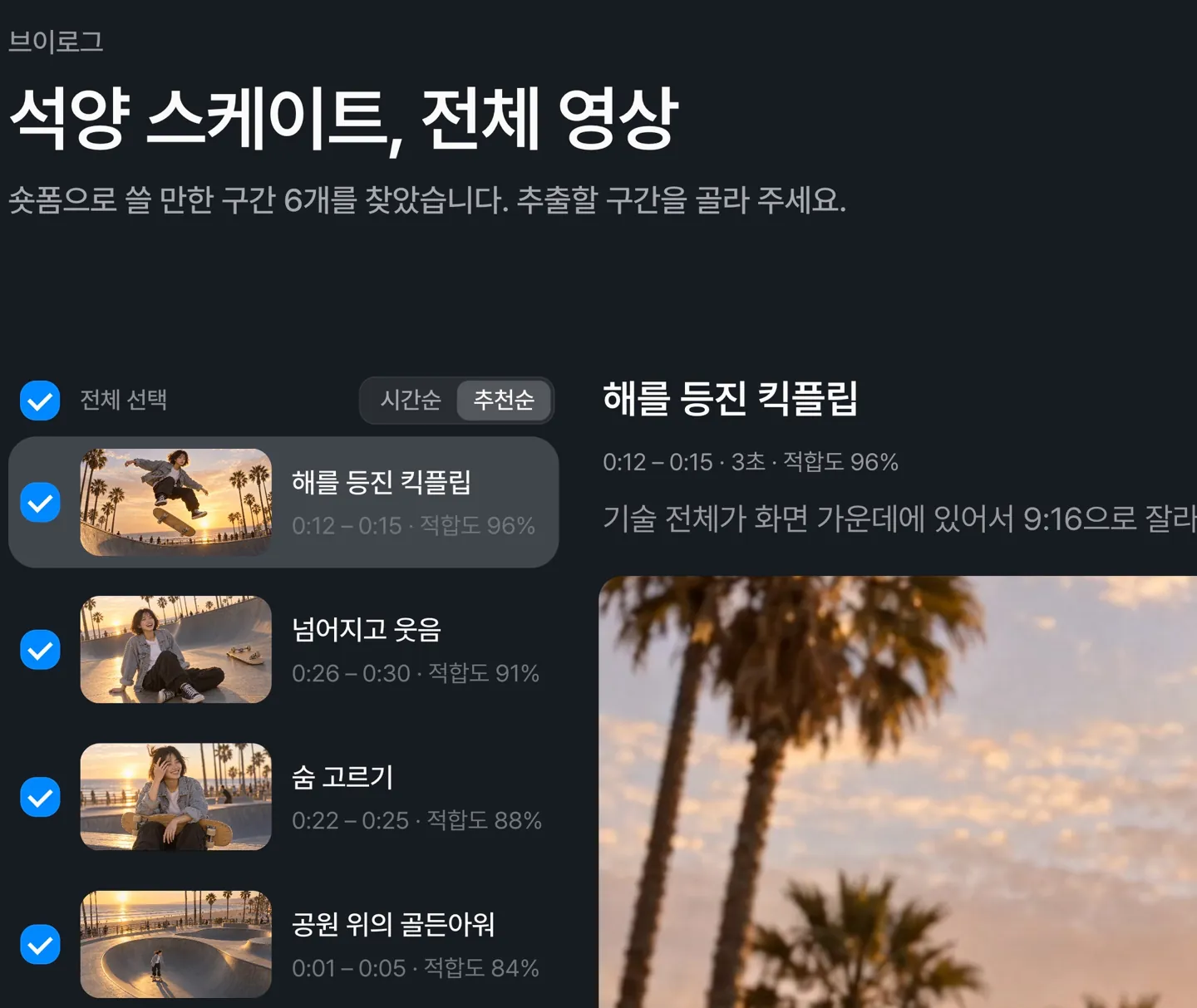
Sort by time or by recommendation. Recommended order shows the best-matching segments first.
See which parts could not be analyzed
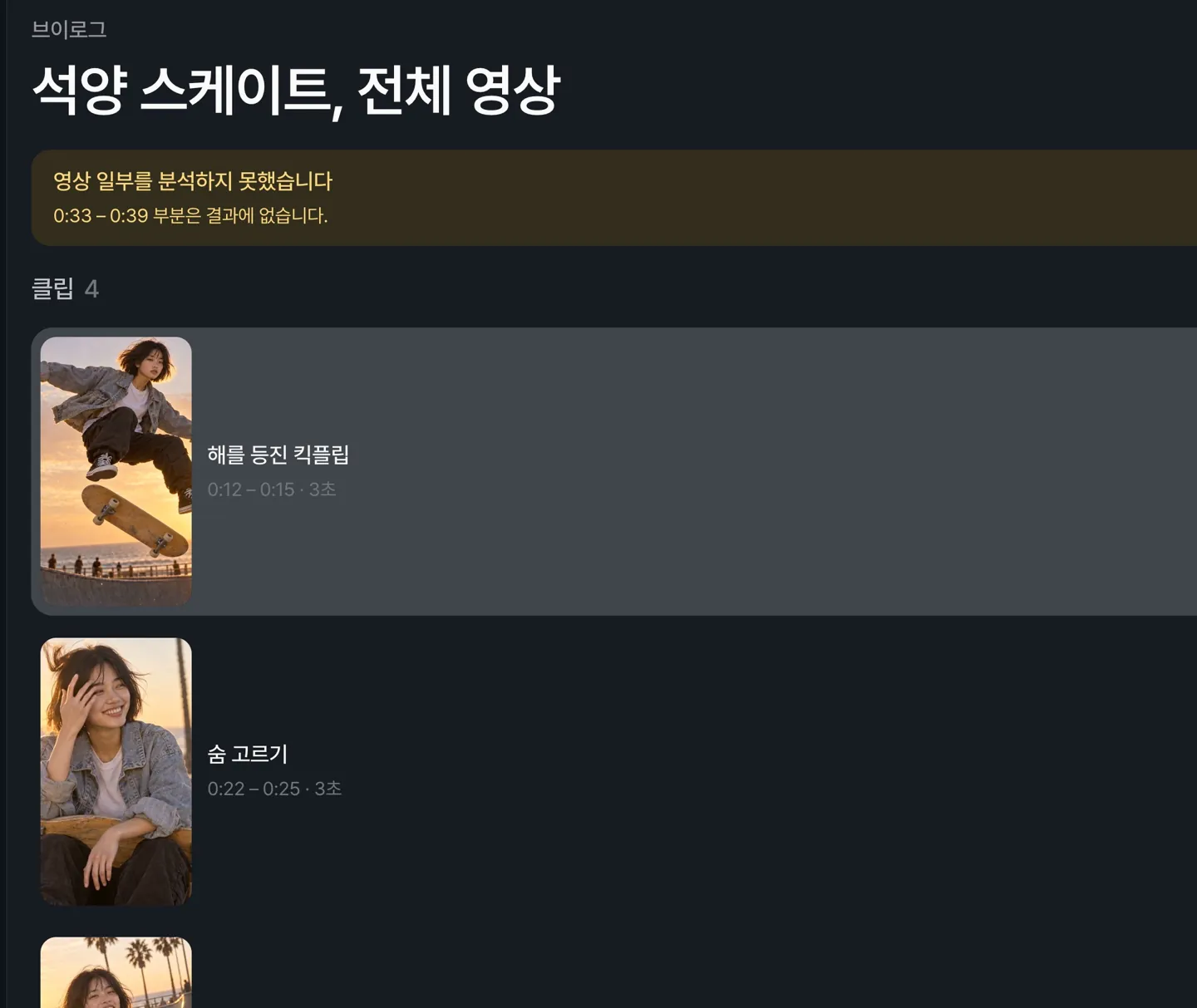
If part of a video could not be analyzed, its time range is shown at the top of the results.
YouTube analytics
Channel details at the top
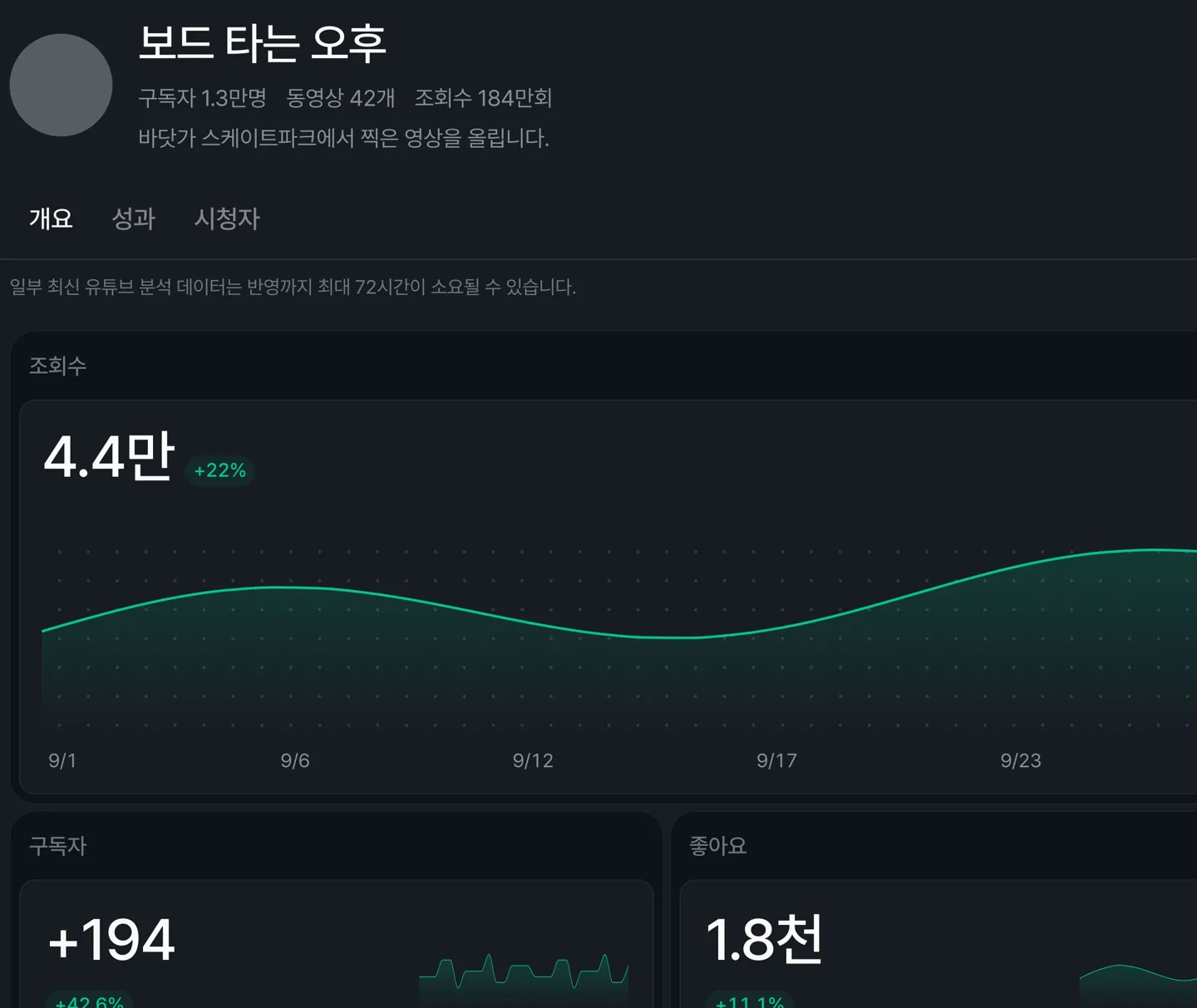
Subscribers, videos, and views appear under the channel name.
Each metric in the Overview tab shows its change from the previous period.
Viewing metrics in the Performance tab
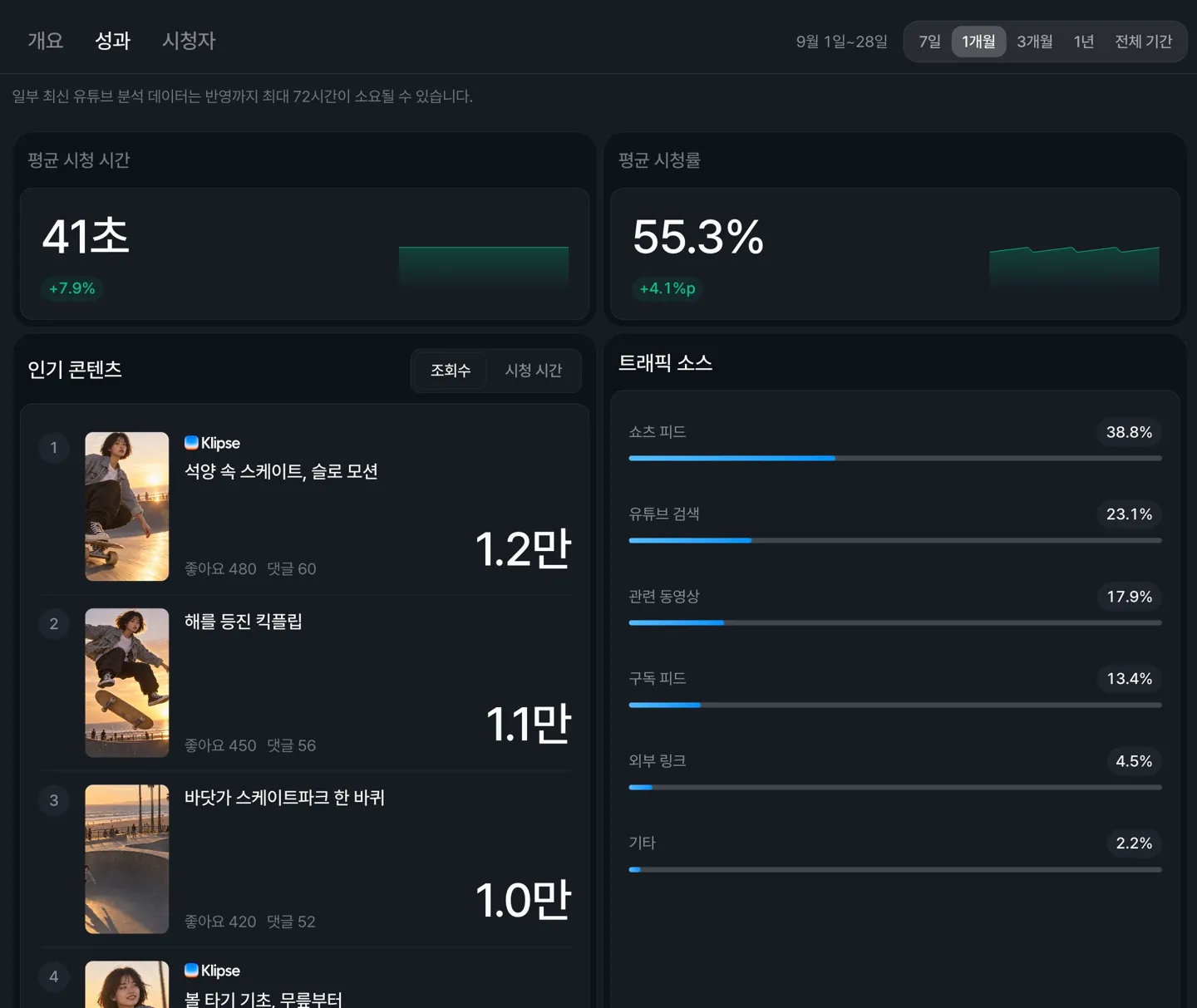
Average view duration, average percentage viewed, top content, and traffic sources on one screen.
See who is watching in the Audience tab
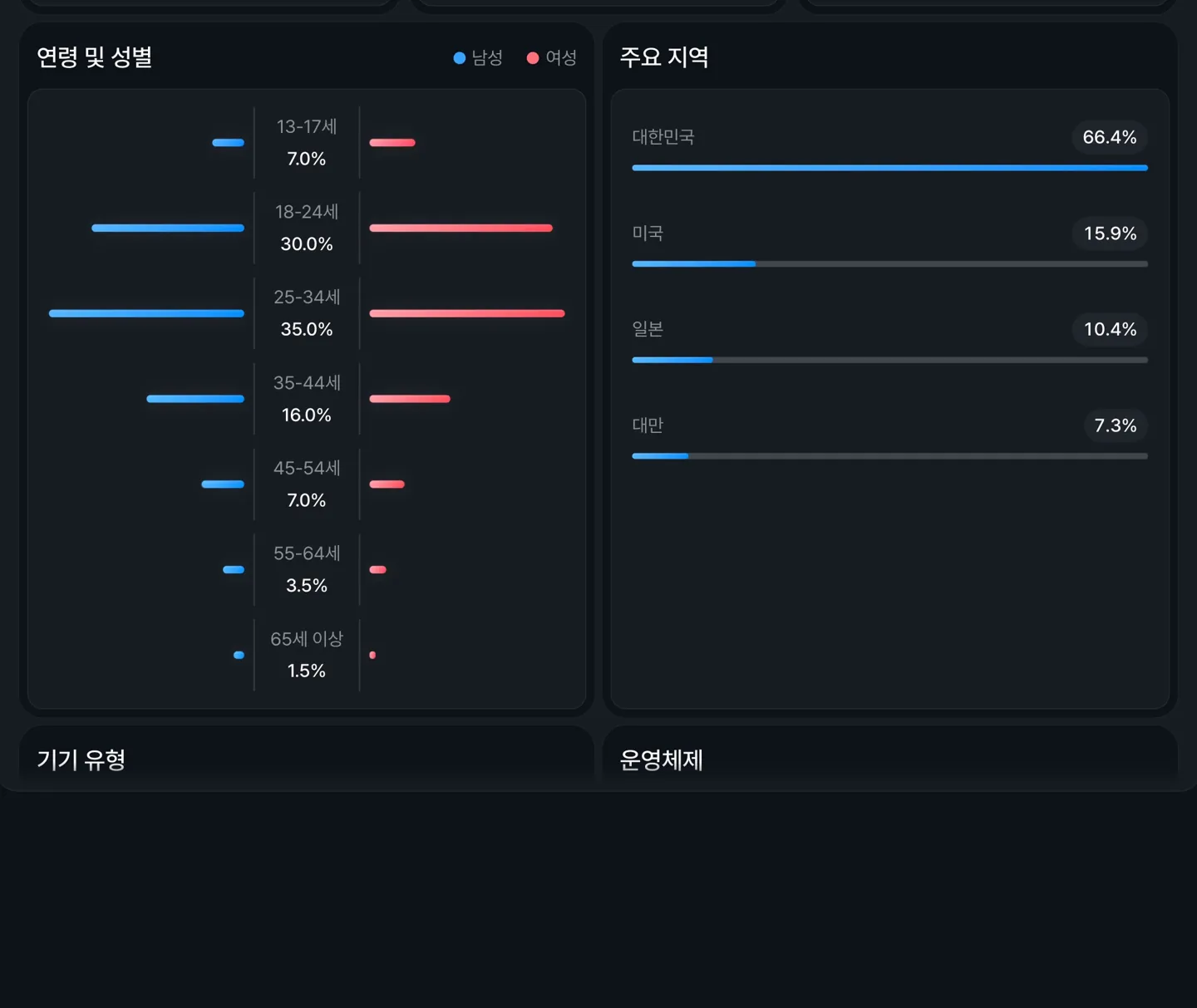
Age, gender, top locations, and other audience data for any period.
Per-video analytics
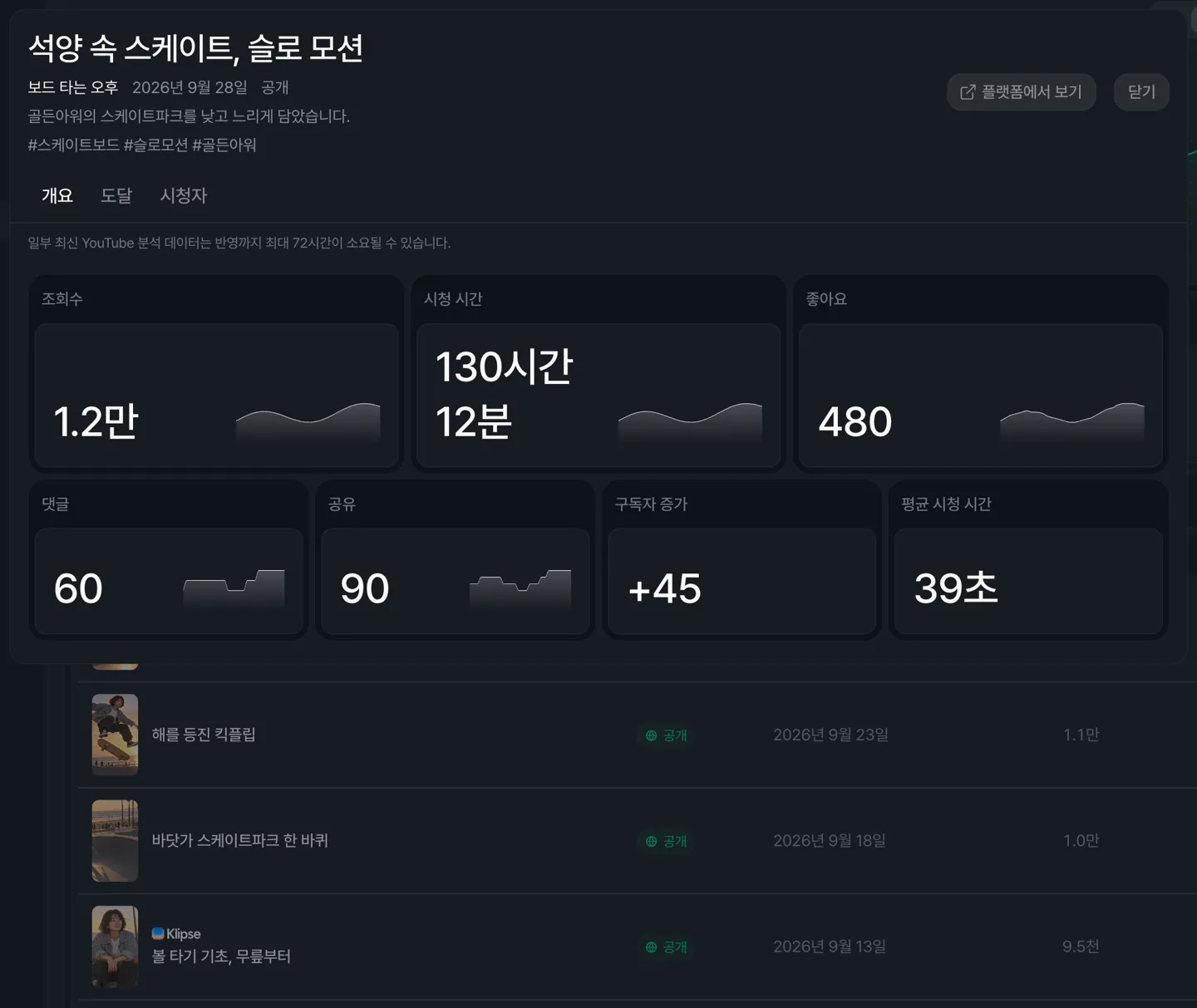
Select a video to see its views, watch time, likes, comments, shares, and subscribers gained.